This is how to use YouTube as a free screen video recorder!

YouTube has some amazing tricks up its sleeve including a built-in video editor and tools hiding your face or particular object as such. One of the great feature of YouTube is that you can use YouTube site to record anything on your computer screen. From showing off an app or to teaching grandparents to use Skype.

Just go to YouTube’s beta live streaming page and click enable live streaming. Complete the verification process and click to create live event thereafter. Please note that your video will be NOT be broadcasted without your permission.

Name your screencast and select from Private (specific people have access) or Unlisted (anyone with a specific URL has access) from the drop-down list on the right. Click Go live now once you are ready.

At this point, YouTube demands access to the webcam and microphone on your computer that can be later toggled on or off.

Click on the Screenshare icon (White arrow on Green background) on the hangout window and select the entire screen or one of the windows that is currently open.

Click on Share and you are ready. Use Start broadcast option to begin recording and Stop broadcast option to stop. Go back to YouTube to see and share your saved video.

[adinserter block=”7″]

As a technology lover you may like our daily important technology news series. It’s a playlist and you can retrieve the total day-wise videos. Please consider subscribing our YouTube channel:

Author: Technology and Beyond

Tagged : /

The easiest way to reclaim crazy amount of space on your iPhone

Follow the steps given below to clear out tons of space on your iPhone quickly and easily.

Step 1

See how much free space is available for on your device. To do this you need go to settings->General->Usage->iCloud storage and space.

This way you can check the storage that is available for you.

Step 2

Visit iTunes store and choose a movie the size of which should be greater than the free available space. For example, choose lord of the rings and hit “Rent” Twice.

Step 3

Once you receive a message saying that you do not have enough space available. Return to settings again. You will notice that you have more space available. Repeat the process to get more free space. Make sure you do not rent the movie if you have enough space available.

This works because iPhone clears all the cache and other data from the app to make space.

[adinserter block=”7″]

As a technology lover you may like our daily important technology news series. It’s a playlist and you can retrieve the total day-wise videos. Please consider subscribing our YouTube channel:

Author: Technology and Beyond

Tagged : /

THIS is how you install a new memory in your PC

Turning your old computer into a reasonably speedy one is a real possibility. Today’s generation is getting very much accustomed with the new vibrant technologies including laptops, computers and Internet. With computer, came the abundance of software. Currently software like Photoshop, Skype, Dropbox and Web browsers like Chrome/ Safari etc. are must for the users.


These software runs on RAM while the sessions are in process.


Often, 2 to 4 GB of RAM makes it difficult for your computer to run with many essential software. You need to increase your RAM if your PC is finding it difficult to run because of the presence or usage of large number of software.


In today’s context, 4GB is suggested if the computer’s performance requirement is very gentle, but an 8 GB is advised if you are a heavy software user, however 16GB is a superlative option.


Various kinds of RAM’s are available in the market, like, DDR4, DDR2, and DDR3 etc. DDR2 and DDR are older versions of RAM, whereas DDR3 rules the market today. There are different brands of RAM are available for purchase, like, Kingston, Corsair, G.Skill etc. You must keep in mind the design of RAM’s heat sink when selecting a brand. The other important feature to be considered is the speed and memory kit capacity of the RAM. Clock speed should be from 1600HZ to 1866HZ for DDR3 RAM.


Follow the steps below to install new memory in your Personal Computer


Step 1


Shut down your PC and disconnect all the connected cables. Take out the motherboard by opening the CPU.


Step 2


There are four memory slots next to the big heat sink. RAM slots are adjacent to the CPU socket.


Step 3


Remove the old Ram by removing the plastic latch aside of it. Also, remove any dust present on the RAM slot.


Step 4


Now place the new RAM in the slot so that every small socket in the RAM get filled with the slots, you can also read the Motherboard manual, if required. Now lock the RAM with the plastic latch.


Step 5: 

Now put back the PC case and connect all the cables and turn on your PC.


Sometimes the system might take few restarts to adopt your newly introduced memory. So keep calm and have patience. You can use the same steps for any RAM.

width="560" height="314" allowfullscreen="allowfullscreen">

[adinserter block=”7″]

As a technology lover you may like our daily important technology news series. It’s a playlist and you can retrieve the total day-wise videos. Please consider subscribing our YouTube channel:

Author: Technology and Beyond


Tagged : /

How Internet is accessed from the International Space Station (ISS)?

International Space Station (ISS) is a matter of pride for us- human beings as it is the important link between the space and the Earth. But doesn’t it occur to you that while we struggle with our internet signals once we reach a remote or distant location, how do people on International Space Station have access to it and that too without any glitch? Isn’t the space station a remote and distant location? If you delve deep, you will find that the ISS’s internet access is quite interesting.

internet

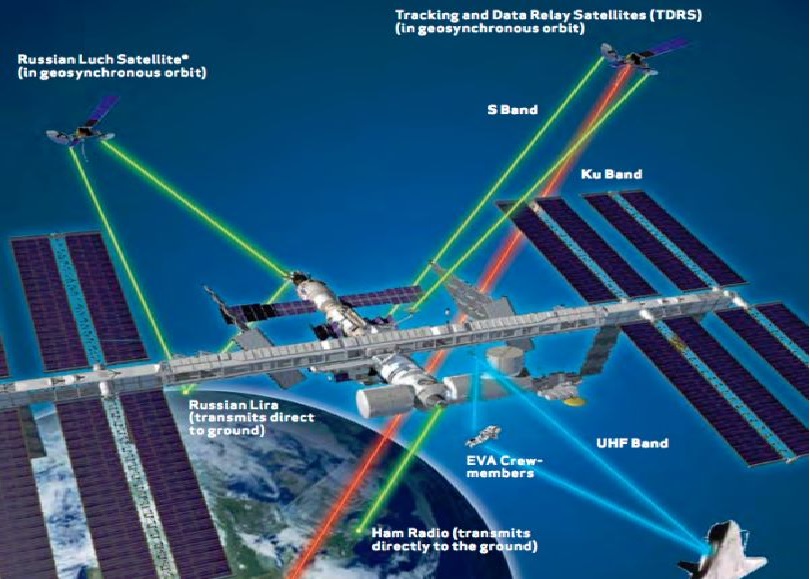
The basic problems in setting up internet in space are the inability to run a fibre-optic cable from ground to space and a planetary scale Wi Fi is still no less than a dream. This is the reason why the majority of communication with the ISS happens with the help of radio waves.

Radio is quite easy to set up (needing just an antenna and a transmitter) and an easy and straightforward way of broadcasting information. In addition to this, the atmosphere doesn’t block radio waves so the signals don’t get absorbed mid-way. Radio waves are the way we communicate with most of our satellites. The radio frequencies used for the space station communication are different from what we use in our cars. A GPS satellite for instance uses the ‘L band’ frequency range of 1 GHz to 2 GHz.

The radio connection to the ISS isn’t L-band, it’s Ku band (12-18 GHz) and S band (2-4 GHz), but the principle is the same. We can beam a signal up to the ISS, which has an antenna which lets them receive it, and then their computers can download an email.

[adinserter block=”7″] 

Next Page For More

Tagged : /

This is HOW you can access another computer from your own computer!

How wonderful it would be if you could access your important work files from your office computer while being at your home? You may be surprised but it is possible. You can even get a technician to control your home computer screen even if he is sitting in his office. Many ways to do this exist, a few of them are listed below. Hope you find them worth your time!

Method 1: Windows Remote Desktop

maxresdefault

For this method, you need to be connected to the computer you want to access via the same shared network. This can be done by connecting both to the same wifi or through a VPN. You also need to enable ‘Remote Desktop’ on the computer you want to have access to. For this:

  • Click Start->Control Panel->System and Security->System. Or you can press Windows key + Pause key.
  • Select the ‘Remote Settings’ link on the left side.
  • Tick the ‘Allow remote connections to this computer’ checkbox. If you wish to change some of the advanced options, you may do so under the ‘Advanced’ button.

Now, choose the users you want to allow access to the computer. This can be done by clicking on the ‘Select Users’ button and then selecting the ‘Add’ button.

You also need to know the system name so that you can find it to connect. Press Windows key+pause. The name will be found in the ‘Computer name’ entry.

Make sure the computer is not in the Sleep mode. To disable it :

  • Go to Control Panel->Power Options.
  • Click on ‘Change plan settings’ link.
  • Set Sleep and Hibernate to Never and save the changes.

Now, start the computer you want to connect to the remote computer. Choose Start and search for ‘remote desktop connection’. Open it.

  • Type the system name of the computer that you want to connect to.
  • Type your username.
  • Use ‘Show Options’ to change the advanced options for this connection.
  • Click on Connect. Once you are connected, the other computer’s desktop screen will appear on your computer in a different window. You can control it normally.

To connect to your remote computer over the internet, open port 3389 on the firewall of the remote computer. It is advised to have a very secure password because this exposes your desktop to the internet. After opening ports, enter the public IP address of the computer to connect to it.

You can also use the official Microsoft app to connect with Windows 8 or 8.1 Professional desktops. You just have to configure Remote Desktop on the computer.

[adinserter block=”7″]

Next page For More

Tagged : /

How to stay safe when you are using public wifi!

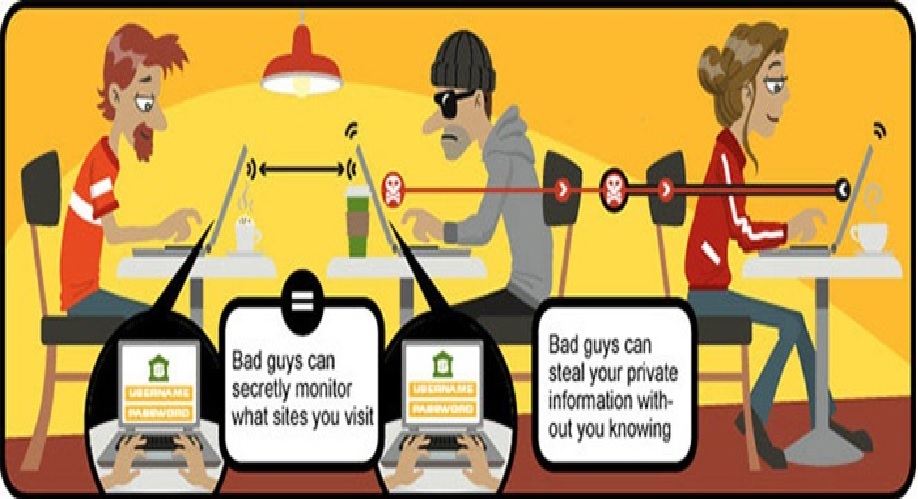
Today when you step out, you will surely come across many public wifi hotspots. And come on, who doesn’t love free wifi on the go? But you need to beware of the risks involved. Read on to know all about using free public wifi:

airportwifi

Read the terms and conditions carefully

In the haste of getting access to the internet, many people click on anything that appears on the screen. These might put them in a lot of trouble. Always ensure to double check what you’re signing up for. Make it a point to read the terms and conditions. Decide carefully if its worth to give the information it is demanding for. You can use an alternative email address if you have, in these times. Another important point is to always connect to official wifi networks that are properly advertised. Many a times, hackers set up free wifi hotspots to catch vulnerable citizens. Do take a note that you don’t fall prey to such traps!

Stick to secure websites and apps

Think a lot when you are about to do something very important over a public wifi. In such networks, it is very easy for anyone on the same network to access your data.  When connecting your phone to the network, try to use a browser than an app. Apps can generally accept fake security information without your knowledge. This can create a mess for you if you are buying stuff online or using net banking. Browsers are much more secure for checking and verifying HTTPS connections. Furthermore, using apps from famous and well-known names will reduce the risk on public wifi although none will provide you a guarantee.

Install a VPN app

VPNs (virtual private networks) redirect your data through trusted and dedicated servers. You can either pay for a reputable VPN service or go for a well established free one. Most of them are available as apps for desktop and mobiles, and they are easy to install and use. This is the really effective way of securing your connections over public networks. Some of the highly recommended VPNs are IPVanish, CyberGhost, Hotspot Shield and Private Internet Access. Also, Opera’s mobile browser has a built-in VPN.

[adinserter block=”7″]

Next Page For More

Tagged : /

Forgot your computer password? Don’t worry! This is how you can still access!

Imagine that you need to access some important files on your computer and you cant log in to your computer just because you don’t have the password, seems horrifying, eh? Don’t worry and check out these easy hacks to access your PC without your password!

AAEAAQAAAAAAAAJdAAAAJDkzNjc4ODk1LWI1NTYtNGFiNi05MTViLWE1ZjY5ZmJmYTZkMw

Method 1 : Change your Windows 8 or 10 Password Online

On a different computer, visit https://account.live.com/resetpassword.aspx. Select “I forgot my password” on the page that opens and click “Next”.

Note that this method will only work if you have a Microsoft account and use it to log into your computer.

Enter your Microsoft account email address. Don’t forget to write the entire email address along with the domain name. In the box below, type the verification code and click “Next”.

Select an appropriate option to receive the password reset code. The options will include the phone number and non-Microsoft recovery email address. Choose either of them and click “Send Code”. You may click to “I don’t have any of these” if that’s the case and below that option, type an accessible e-mail address and click “Next”.

In case, you received the code via your recovery email address or phone number, you can enter the code and click next to reset the password. You can login with your Microsoft account once you confirm your new password. If that was not the case, then you’ll be directed to a form that will verify your identity, try to provide as much relevant information as you can including your old passwords. Microsoft will verify and send you the password reset link on the email address provided.

Method 2: Change your Windows 8 or 10 Password in Safe Mode

Click on the Power icon on the login screen, hold down the shift key and press “restart” along with it.

When the computer restarts, choose “troubleshoot” then “advanced options” then “Startup Settings” and then click “Restart”.

Press 4 or F4 to enter the Safe Mode. You will be taken to a ‘Safe Mode’ login screen.

Login as “Administrator”. You don’t have to enter any password.

Press the ‘Windows’ icon + X, click “control panel” and then “user accounts”.

Select “Manage other accounts”. Now choose your user account to change its password.

Change the password and save it.

Press ctrl+alt+del, then click Power icon and then “Restart”. Now you can login normally with your new password.

[adinserter block=”7″]

Next page For More

Tagged : /

THIS is How you can access tour computer from your Smartphone

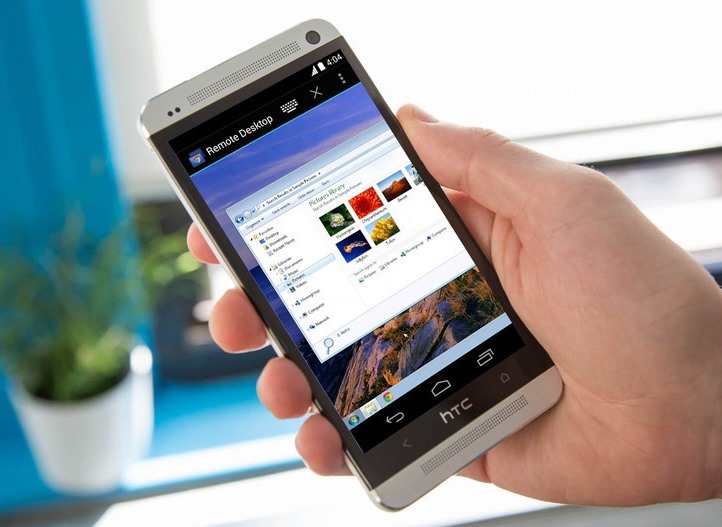
Yes, you read it right! Now you can access your computer with an iPhone as if you are sitting in front of it. The two methods described here work the best and they are free to use too. Let’s have a look at them.

11

Method 1: Using TeamViewer

Install TeamViewer on your iPhone from the AppStore. This app provides support to technicians who make changes your computer over long distances.

Open the app and create a new account by providing your name, email address and a password for your account.

Install the TeamViewer app on your computer using teamviewer.com/en/download/. The two apps will work together to provide a safe control.

Open the TeamViewer app on the computer. Click on ‘computers & contacts’ at the bottom of the screen. In the window that comes up, login using your TeamViewer account details. Minimise TeamViewer, it will run automatically now.

For extra security, set up a personal password by clicking on Extras >> Options >> Security in the TeamViewer app on each computer you want to control.

Now everything is set and you can control you computers from your iPhone in the same way as you do when sitting in front of the computer.

  • Login to the TeamViewer app on your iPhone.
  • Click the Computers icon at the bottom of your screen, and log into your account.
  • Click the My Computers icon to view a list of all the computers.
  • Click the icon next to the computer you want to control. The icon has two arrows in opposite directions.
  • Enter the Personal Password for the computer you want to control.
  • Click the keyboard icon at the bottom right of your screen to access zoom, settings, and a virtual keyboard.
  • Access files, programs, and operate your computer with touch commands as if you were sitting in front of it.
  • To close the connection, click the X icon on the lower left.

[adinserter block=”7″]

Next Page For More

Tagged : /

THIS is how you can turn Chrome into a personal language tutor!

Learning new languages are in trend now. People now, want to be fluent in more than one language. Even schools and colleges encourage learning a new language and they have mostly included this in their curriculum. There are several exercises, which are practiced for learning a new language like, listening to radios, watching TV, reading etc. To be perfect, you have to inculcate such lessons in everyday.

Google has this habit of coming out with new apps every day for different purposes, Google, recently, came out with another interesting new app, ‘’, which helps people learn new languages easily and quickly.

To use this app perform the steps given below carefully.

  1. Download and install the app for chrome
  2. Open the app by clicking on the icon, which appears on the ride side of the address bar
  3. Select the language you want to learn
  4. Select the fluency level; you can rate yourself from novice to fluent

Now on visiting any website, you will see words and phrases highlighted and translated to the language you want to learn. You must be careful in checking out the portion that has been translated for building your vocabulary. In case, you are still finding it difficult, click on the translated word and it will be converted back to English. Click again to change it your targeted language.

You can also hear the translated portion using ‘Google Translate’. The app also allows you to make significant setting with Google Translate website, which automatically translates the word into your chosen language.

While you are a novice, only few sentences are translated into the chosen language. The number of translated portions increases with time. The entire paragraph is changed into the chosen language when you select fluent as your option. You can close the app by clicking the icon again and selecting the off option.

Although, translated websites are not perfect always, but its utility depends on how you would like to use the Google translate. Occasionally, you may see spelling mistakes as well, but they are trying to bring remarkable solutions for those, who need assistance in learning and practicing a new language, in their daily routine.

[adinserter block=”7″]

As a technology lover you may like our daily important technology news series. It’s a playlist and you can retrieve the total day-wise videos. Please consider subscribing our YouTube channel:

Author: Technology and Beyond
Tagged : /

5 Amazing yet hidden Windows 10 features you didn’t know about!

Windows 10 has officially been with us for close to a year now, and very less of us has truly explored what it is all about. Mostly people didn’t understand Windows 8.1, but we don’t love the current version either. Here’s some “hidden” features that’d make you feel better about Windows 10.

The hidden battery report:

52421601

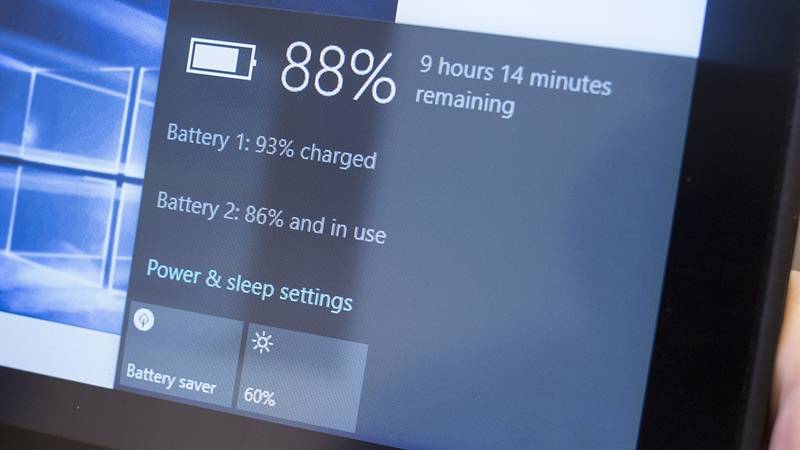
Everyone likes to keep track of their battery consumption, and while the tiny bar does little wonders for accuracy, you can find a more detailed and thorough battery report available too, giving you useful information on its overall health and how much time of use you’re getting between charges.

If you’re using Windows 10 on a tablet or laptop, right-click on the Start menu button then choose Command Prompt (Admin), then type powercfg /batteryreport /output “C:\battery_report.html” into your new command window. Open the HTML file to get a host of useful stats and data on your battery.

This \battery report continues from the older versions of Windows.

Print to PDF:

52421602

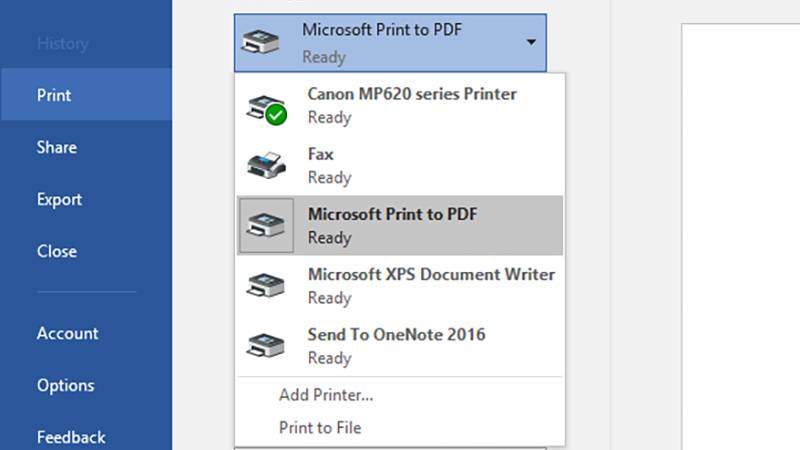
Remember when we were forced to use the XPS format with Windows 8? Those days are long gone.

This feature saves the time and trouble of having to mess around with plug-ins to do the same job. You can freely choose an output format you know everyone is going to be able to open and view.

In whatever program you want to print from (standard desktop or universal app), choose Microsoft Print to PDF from the list of available printers. And choose your filename and location.

The God Mode shortcut:

52421603

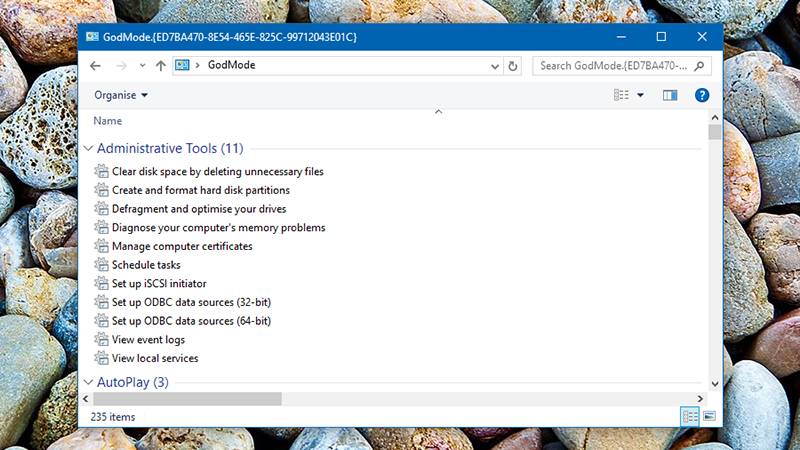
This one doesn’t take over completely, but it does give you quick and easy access to some of the key parts of the Windows operating system.

Just create a new folder anywhere you like on your system (the desktop works well) and name it GodMode.{ED7BA470-8E54-465E-825C-99712043E01C} (you can replace “GodMode” with anything you like). A double-click on your newly created folder and you’re in business, able to play around with settings for devices, networks, attached displays and more.

[adinserter block=”7″]

Next Page For More

Tagged : /

First thing first! Install THESE Apps today to unlock the full potential of your Android device!

Android operating system offers a much higher level of customization than its rivals iOS and Windows. Your smartphone has countless pre-installed features, and there’s no dearth of apps for even more.

Here’s a list of android apps that’ll make you regret you didn’t know about them before.

Discreet Notifications:

The AcDisplay app emulates the feature available for phones with AMOLED screens, which lights discreetly when there is a new notification when the screen is locked. With AcDisplay, see your notifications pop up on a minimal beautiful screen, remain for a while and then disappear.

You can instantly access them, or swipe to remove them.

The app also makes use of available sensors (Proximity, accelerometer) to turn on the screen when you take it out of your pocket, or when you pick up from a table.

It consumes surprisingly less of the battery and you’ll be hooked onto it from the start. Install the AcDisplay app from here.

Custom ROM features on your stock ROM

While custom ROMs are always useful, they take are tedious to try and install and to set up.

Gravity Box is a tweak box which brings all those features available in custom ROMs, ready to be implemented as and when you wish. You can tweak almost every aspect of your phone, right from the lock screen to the status bar to the app drawer style. You could spend an hour or so inside the app setting up your phone just the way you want.

You need to root your phone and download the Xposed Framework, through which, you can download Gravity Box. But it’s totally worth it. Download the Xposed Framework first from here and then install Gravity Box from the list of modules.

Bluelight Filter for your nerves:

The exposure of blue light from our smartphone has always been a source of debate about its effects on our circadian cycle and our quality of sleep.

The Twilight app makes your screen adapt to the time of the day. It will filter the blue light emitted by your device after sunset to protect your eyes, with a soft red filter. The filter intensity is adjusted to the sun cycle based on your local sunrise and sunset times. Use Twilight to protect your eyes, when reading in your bed before sleep and get a good night’s sleep. Download the app from here.

Essential information without having to unlock your screen:

The Dashclock widget appears to be a simple clock widget which sits discreetly on your home and lock screen. But, in reality, it could allow you take a peek into the most important notifications with a single glance.

With the Dashclock widgets and the myriad of extensions available in the Play Store, you can get all the information from missed calls to unread emails to cricket scores, right on your lock screen, in a beautiful minimalist way.

It is an extremely lightweight app and consumes minimal battery. Download the widget from here.

Next Page For More

Tagged : /

Unlock the full potential of WhatsApp with these secret hacks!

WhatsApp is a pretty amazing app. People did catch on early on. And now, as its user base continues to grow, it has managed to enter every sphere of your life. Be it friendly chats or business discussions, WhatsApp is here to stay. But are there any benefits of WhatsApp you’re completely missing out on?

To start with, constant notifications irritate us all at some point. And once you have gone online, or read a message, there’s no going back. You’ve to reply, or the person will know. Is there no way out?

Read your messages with ‘Last Seen’ and ‘Read’ status unaltered.

If you want to avoid explaining why you haven’t replied in spite of your ‘last seen’ timestamp and ‘Read’ status updated, you can use this trick.

Dedicate a home screen to a 4×4 WhatsApp widget. All unread messages will appear there, not only the most recent unread message from each chat. Read through all of those messages through the widget and your ‘last seen’ and ‘read’ status will remain unchanged. This really does work like a charm.

Transfer files of any format upto 1 GB on WhatsApp.

What, you thought 16 MB was the limit? An App called WhatsTools sits quietly inside the ‘attach’ button in the chat window (after giving permission using the accessibility service) and allows file sharing of size upto 1GB.

Using this tool, you can bypass the restriction to 16 MB.

You can also pause/resume the upload/download of files and preview video files before downloading. The files are shared through an HTTPS encrypted path and gets stored in your Google Drive account.

Delete old WhatsApp Message Backups and clear space on your phone storage.

Well yeah, your memory filling up- fast. Instead of deleting your precious photos, delete useless chats that have long ended.

To delete the older backup files, go to Internal Storage-> WhatsApp -> Databases.

WhatsApp does a mandatory daily backup in the middle of the night at 02:00. These backups are stored as separate files in the storage memory of your device and with each new backup, containing the thumbnail of all the media received along with newer chats, the file size increases, sometimes to uncomfortable proportions.

This backup to drive feature can also be used while shifting or restoring your phone.

Next Page For More

Tagged : /

The physics behind much hyped Hyperloop: Exclusively for you!

There has been a lot of talk about the Hyperloop concept and the amazing transportation system it promises to bring into human lives. This is a high-speed train that would make the trip from San Francisco and Los Angeles in just 30 minutes. The propulsion system was tested a few days ago by the Hyperloop One Company, in the desert outside Las Vegas.

Basic CMYK

In this same project, another startup called Hyperloop Transportation Technologies also announced that it had licensed a promising technology called Inductrack from Lawrence Livermore National Laboratory for its own Hyperloop design. If you haven’t yet got a chance to understand the Hyperloop transportation system and the physics behind it, then go through this article and then the video accompanying it. You will surely understand a lot.

It was in 2012, that Elon Musk had made an announcement about a new theoretical transportation method which presented the idea of a capsule that will propelled through a tube at over seven hundred miles an hour. He gathered some great minds from SpaceX and Tesla to create a prototype. Known as Hyperloop, the technology consists of a low pressure tube with capsules that transport at both high and low speeds. This system will run between San Francisco and Los Angeles and complete the journey in 30 minutes. There are certain physics concepts that it uses.

Friction and Hyperloop: Everything has friction, for example a brick lying on the floor has static friction which is the type of friction that keeps it in place, once the brick starts moving it encounters sliding friction. If something is rolling then it has rolling friction which is similar to a car wheel or any wheel in general when something is making constant contact at a particular point with a very small amount of friction. The fluid friction is when anything is moving and in counter resistance with the air for example airplanes or anything that has to move through air at a speed.

[adinserter block=”7″]

Next Page For More

Tagged : /

What should you do to restore a damaged PC due to power outage or surge?

These days, electronic devices and PCs are lifelines for us and we are completely dependent on those. But, because these devices are completely dependent on electricity, there is always a risk of damage due to power fluctuation or surge. There is always a possibility of power failure or surge due to storms, hurricanes, heavy rains, snow etc., which can damage your PCs and electronic devices.

battery

Subsequent to the electrical surge, your PC may reach a state where it won’t start at all, if the inner mechanism gets damaged. You should be aware of the precautions, which need to be taken so that your PC doesn’t get damaged due to power surge. Below are the measures which you must take to prevent damage in the first place itself:

  • Unplug your PC, in case of power outage.
  • Keep one light plugged in. This will let you know when electricity is back.
  • Have a backup of all the important files on an external USB drive. This will help you to retrieve the files, in case of data loss.
  • Install a barrier like surge protector, which shall protect your PC by nullifying the sudden power surge.
  • Having a UPS installed will give you enough time to complete your routine of shutting down your PC.

Follow the ways given below, to restore a damaged PC affected by power outage or surge.

There can be two possibilities because of which your PC will fail to start. The first possibility is damage to your power supply and second possibility is the damage to the device. You can replace the damage made to the power supply on your own, but, you need an expert in case the device is damaged itself. The following will help you to take some actions related to device damage.

Problem with the motherboard can lead to irregular working of your PC. You can correct this by:

  • Removing the small battery from the motherboard, and restart the PC, inserting the battery again after 5 min.
  • Buy an identical motherboard.
  • Buy a new motherboard.

If your PC is working irregularly, then it can be a mainly the problem of the motherboard. There is small chance that the CMOS information is scrambled. To correct this, you can remove the small battery on motherboard. Insert it after five minutes and restart your PC.

[adinserter block=”7″]

As a technology lover you may like our daily important technology news series. It’s a playlist and you can retrieve the total day-wise videos. Please consider subscribing our YouTube channel:

Author: Technology and Beyond

Tagged : /

Do you not switch off your computers/ devices routinely? See why and how it is harmful!!

If you are not switching off the electric items when you are not using them, you are actually wasting electricity and electricity costs money.  Move over, you are damaging the planet, you depend on, by burning the carbon to generate electricity.

According to computer technicians, PCs/desktops are meant to stay on for long period of time but you should set your PC to go into sleep mode after a specified period of non-usage. But, in case of laptops, you need to turn it off, if it is not properly set up to permit cooling at the Base of unit. Otherwise, this may damage your device due to overheating and burnout of the processor.  To save the energy and to prolong the life of your laptop/PC, you need to keep the air vents clean. Also, most probably, you will suffer the problem of disconnect, if you will leave your modem or router on for long time.

Here is the list of problems you will suffer, if you are not turning off your electronic items for a long time:

Overheating

In the system like pc and laptop, overheating occurs due to their excessive use. It may, eventually, destroy the hard drive and you may lose your important data. Motherboard may also get burnt in this process. Therefore, in order to prevent it from overheating, turn off your pc/laptops and make sure, proper air should enter in your pc for cooling purpose.

Wi-Fi or internet network problem

In case, there is some problem associated with your Wi-Fi and internet connection, there is a chance that it is related to the software of your modem or router. In order to solve this problem, restart the router by unplugging it from the power socket and then plug it back. This, power cycling, enables the devices to boot afresh and acquire a new snapshot of the network. This is especially required when there is some change in the network in terms of hardware, software or configurations.

That’s why it is important to turn off your pc, laptop, router, modem and other electronic equipment as and when possible.

Here are the reasons to keep your pc/laptop on and off:

Reason to keep it on 

  • When you are using your computer as a server.
  • When you are allowing activities like background updates, virus scan to occur while you are away.

Reasons to keep it off:

  • To save electricity.
  • To increase the performance of the electronic items.
  • To slow down natural degradation process

[adinserter block=”7″]

As a technology lover you may like our daily important technology news series. It’s a playlist and you can retrieve the total day-wise videos. Please consider subscribing our YouTube channel:

Author: Technology and Beyond


Tagged : /
Verified by ExactMetrics