Method 2: TeamViewer
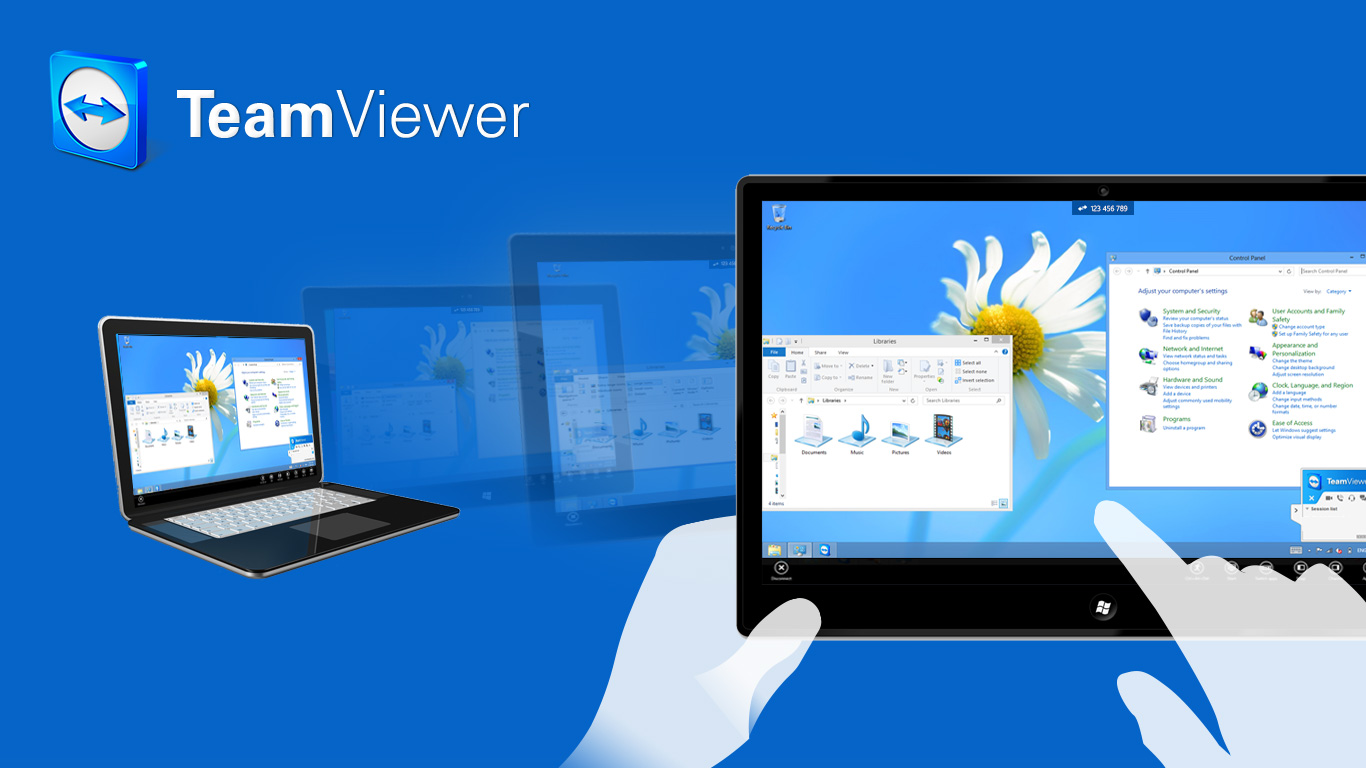
Download TeamViewer on the remote computer. It is extremely useful program for connecting your computers. It can also connect Mac to PC and vice-versa.
Open Teamviewer. Select Install on the installer. Click on ‘Show Advanced Settings’ and select ‘personal/non-commercial use’. Read and accept the license agreement.
Check the ‘close to tray menu’ checkbox in the advanced options. Ensure that ‘full access’ is selected under ‘access control’ dropbox. Finish the installation.
Once installed, open TeamViewer. In the ‘Connection’ tab, select “Setup Unattended access” setup process. Follow the steps in the wizard to complete the setup. Also give an appropriate username to your computer and a secure password.
Sign up for a new TeamViewer account. Once done, you can see which of the remote computers are available to connect to.
To connect to the computer, keep TeamViewer running. It uses minimum space and runs in the background.
Now, open the computer you want to connect with. Login on the TeamViewer website or install TeamViewer on this computer and then login with your account details. This will connect you to your remote computer.
Method 3: Chrome Remote Desktop

From the Google Chrome web store, install the Remote Desktop Chrome extension. Download it on both the computers between which you need the connection.
On the remote computer, open the Remote Desktop app. Login with your Google account and select ‘Enable remote connections’ button.
For extra secure connection, create a PIN.
Accept the installations for the software.
Disable Sleep mode as done in method 1 above.
Start the computer you are using to connect with and open the Remote Desktop app. Select the remote computer and enter the PIN to connect to it.
In your Google Chrome browser, you can see your remote computer’s display. To control the remote computer, use the Send keys like as Ctrl + Alt + Del and Print Screen. To stop the connection, click on the Disconnect button on the top.
You can also share your computer’s screen temporarily. For this, click on the Share button on the Remote Desktop menu. A code will be generated which can be given to anyone you want to share the screen with and they can assist you.
[adinserter block=”7″]
As a technology lover you may like our daily important technology news series. It’s a playlist and you can retrieve the total day-wise videos. Please consider subscribing our YouTube channel:
Author: Technology and Beyond

