5 Amazing yet hidden Windows 10 features you didn’t know about!

Windows 10 has officially been with us for close to a year now, and very less of us has truly explored what it is all about. Mostly people didn’t understand Windows 8.1, but we don’t love the current version either. Here’s some “hidden” features that’d make you feel better about Windows 10.

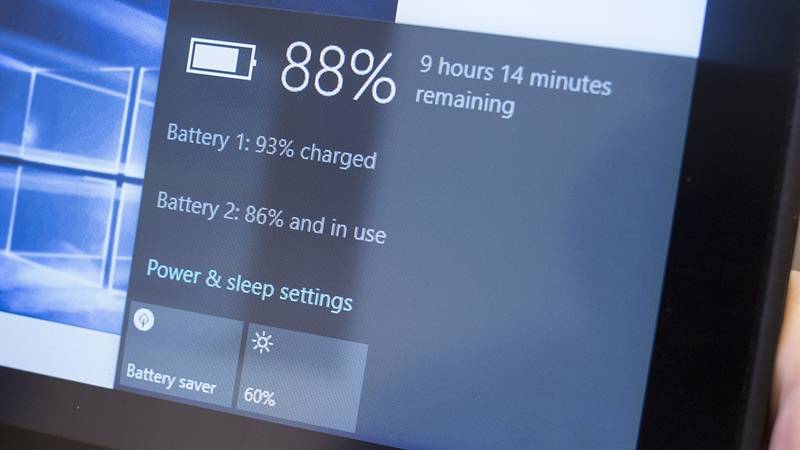
The hidden battery report:
52421601

Everyone likes to keep track of their battery consumption, and while the tiny bar does little wonders for accuracy, you can find a more detailed and thorough battery report available too, giving you useful information on its overall health and how much time of use you’re getting between charges.

If you’re using Windows 10 on a tablet or laptop, right-click on the Start menu button then choose Command Prompt (Admin), then type powercfg /batteryreport /output “C:\battery_report.html” into your new command window. Open the HTML file to get a host of useful stats and data on your battery.

This \battery report continues from the older versions of Windows.

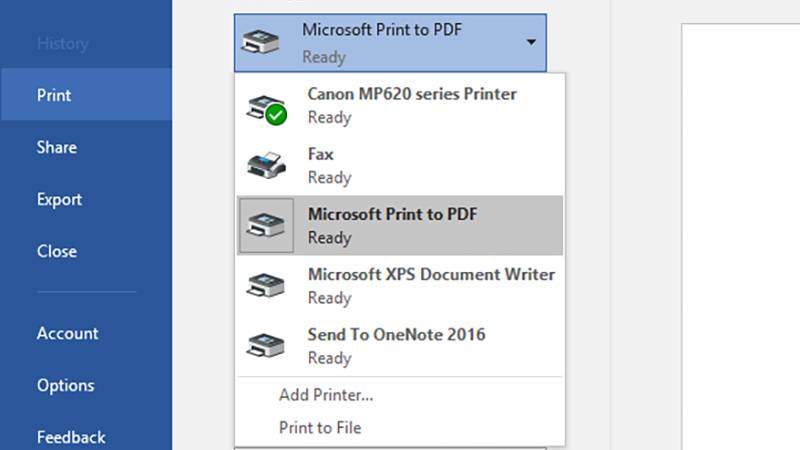
Print to PDF:
52421602

Remember when we were forced to use the XPS format with Windows 8? Those days are long gone.

This feature saves the time and trouble of having to mess around with plug-ins to do the same job. You can freely choose an output format you know everyone is going to be able to open and view.

In whatever program you want to print from (standard desktop or universal app), choose Microsoft Print to PDF from the list of available printers. And choose your filename and location.

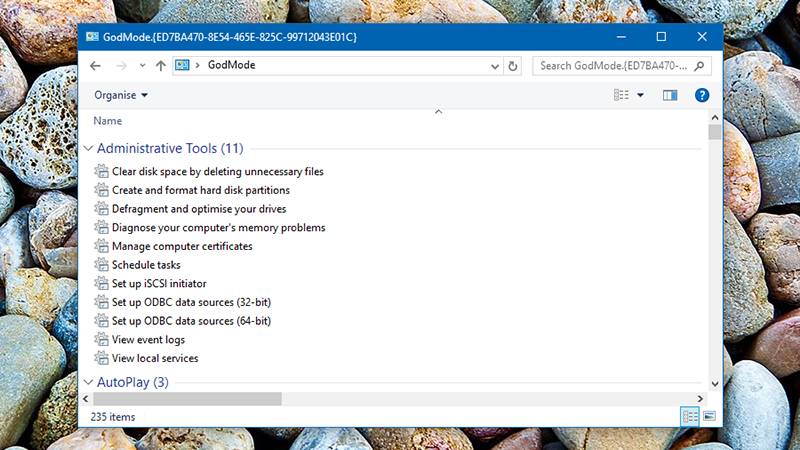
The God Mode shortcut:
52421603

This one doesn’t take over completely, but it does give you quick and easy access to some of the key parts of the Windows operating system.

Just create a new folder anywhere you like on your system (the desktop works well) and name it GodMode.{ED7BA470-8E54-465E-825C-99712043E01C} (you can replace “GodMode” with anything you like). A double-click on your newly created folder and you’re in business, able to play around with settings for devices, networks, attached displays and more.

[adinserter block=”7″]

Next Page For More

Tagged : /

First thing first! Install THESE Apps today to unlock the full potential of your Android device!

Android operating system offers a much higher level of customization than its rivals iOS and Windows. Your smartphone has countless pre-installed features, and there’s no dearth of apps for even more.

Here’s a list of android apps that’ll make you regret you didn’t know about them before.

Discreet Notifications:

The AcDisplay app emulates the feature available for phones with AMOLED screens, which lights discreetly when there is a new notification when the screen is locked. With AcDisplay, see your notifications pop up on a minimal beautiful screen, remain for a while and then disappear.

You can instantly access them, or swipe to remove them.

The app also makes use of available sensors (Proximity, accelerometer) to turn on the screen when you take it out of your pocket, or when you pick up from a table.

It consumes surprisingly less of the battery and you’ll be hooked onto it from the start. Install the AcDisplay app from here.

Custom ROM features on your stock ROM

While custom ROMs are always useful, they take are tedious to try and install and to set up.

Gravity Box is a tweak box which brings all those features available in custom ROMs, ready to be implemented as and when you wish. You can tweak almost every aspect of your phone, right from the lock screen to the status bar to the app drawer style. You could spend an hour or so inside the app setting up your phone just the way you want.

You need to root your phone and download the Xposed Framework, through which, you can download Gravity Box. But it’s totally worth it. Download the Xposed Framework first from here and then install Gravity Box from the list of modules.

Bluelight Filter for your nerves:

The exposure of blue light from our smartphone has always been a source of debate about its effects on our circadian cycle and our quality of sleep.

The Twilight app makes your screen adapt to the time of the day. It will filter the blue light emitted by your device after sunset to protect your eyes, with a soft red filter. The filter intensity is adjusted to the sun cycle based on your local sunrise and sunset times. Use Twilight to protect your eyes, when reading in your bed before sleep and get a good night’s sleep. Download the app from here.

Essential information without having to unlock your screen:

The Dashclock widget appears to be a simple clock widget which sits discreetly on your home and lock screen. But, in reality, it could allow you take a peek into the most important notifications with a single glance.

With the Dashclock widgets and the myriad of extensions available in the Play Store, you can get all the information from missed calls to unread emails to cricket scores, right on your lock screen, in a beautiful minimalist way.

It is an extremely lightweight app and consumes minimal battery. Download the widget from here.

Next Page For More

Tagged : /
Verified by ExactMetrics