New iPhone Killer from Samsung at Almost Half the Price!

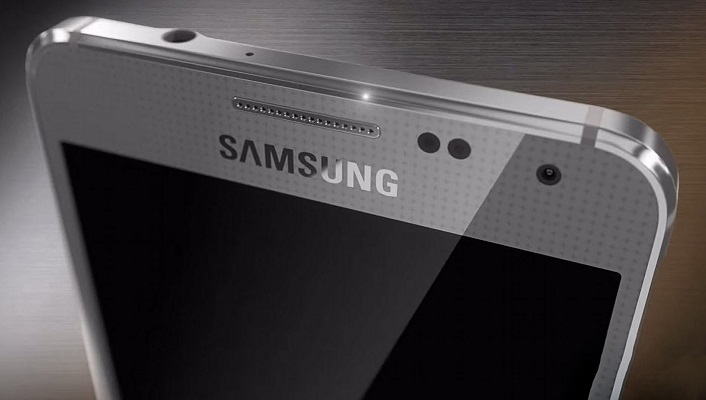
Apple’s woes seem to be never ending. As such it is witnessing a downfall in its sales, situation in China also seems gloomy (which is a huge market) and now to make matters worse, Samsung has released a new smartphone in China which could easily rival Apple’s iPhone 6 and 6S.

samsung-galaxy-s7-edge-hands-on-14-3-1500x1000

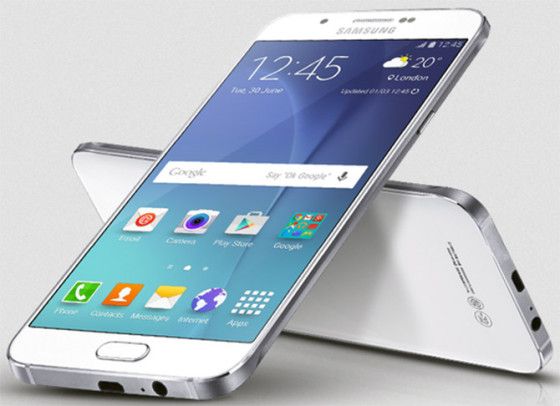
The Galaxy C5 and a bit pricier C7 bear stark resemblance to Apple’s slim design and features. Both these phones include fingerprint sensor, a metal shell with antenna bands and a camera module which is centrally located. And the similarities just don’t stop here; Samsung has also unveiled Apple’s colour finishes of gold and rose.

But the biggest thing that can make things worse for Apple is the price of the new phones. The Samsung models are almost half the price of their Apple equivalent. This move can really prove to be detrimental for iPhone sales.
Samsung-Galaxy-C7-compressor-1

While the Galaxy C5 sells at nearly $A500, including 64 GB storage; iPhone 6 is priced at $A1079. Similarly the Galaxy C7 priced around $A590 (64 GB memory) as against $A1229 for iPhone 6S. Both these Samsung phones though are only available in China, the company is planning to launch the product to wider markets. The United State FCC has recently certified the Galaxy C5 so it may soon appear in the US markets.

[adinserter block=”7″]

As a technology lover you may like our daily important technology news series. It’s a playlist and you can retrieve the total day-wise videos. Please consider subscribing our YouTube channel:

Author: Technology and Beyond
Tagged : /

How to stay safe when you are using public wifi!

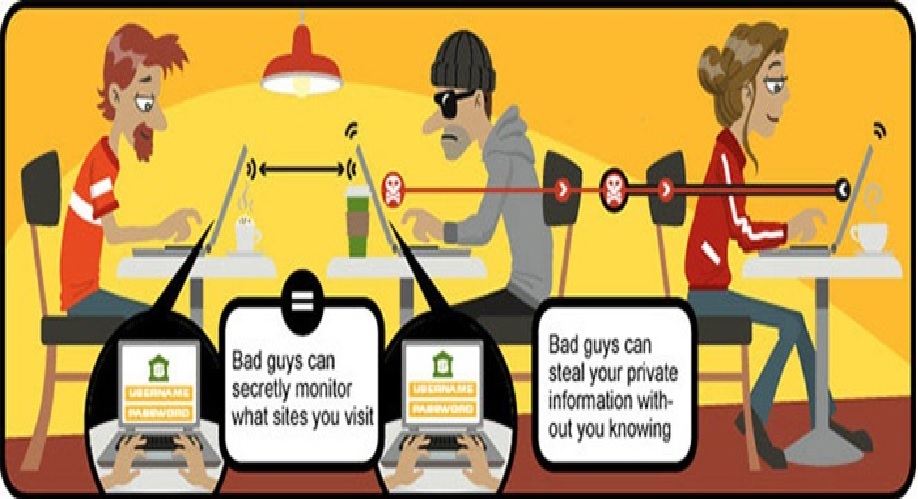
Today when you step out, you will surely come across many public wifi hotspots. And come on, who doesn’t love free wifi on the go? But you need to beware of the risks involved. Read on to know all about using free public wifi:

airportwifi

Read the terms and conditions carefully

In the haste of getting access to the internet, many people click on anything that appears on the screen. These might put them in a lot of trouble. Always ensure to double check what you’re signing up for. Make it a point to read the terms and conditions. Decide carefully if its worth to give the information it is demanding for. You can use an alternative email address if you have, in these times. Another important point is to always connect to official wifi networks that are properly advertised. Many a times, hackers set up free wifi hotspots to catch vulnerable citizens. Do take a note that you don’t fall prey to such traps!

Stick to secure websites and apps

Think a lot when you are about to do something very important over a public wifi. In such networks, it is very easy for anyone on the same network to access your data.  When connecting your phone to the network, try to use a browser than an app. Apps can generally accept fake security information without your knowledge. This can create a mess for you if you are buying stuff online or using net banking. Browsers are much more secure for checking and verifying HTTPS connections. Furthermore, using apps from famous and well-known names will reduce the risk on public wifi although none will provide you a guarantee.

Install a VPN app

VPNs (virtual private networks) redirect your data through trusted and dedicated servers. You can either pay for a reputable VPN service or go for a well established free one. Most of them are available as apps for desktop and mobiles, and they are easy to install and use. This is the really effective way of securing your connections over public networks. Some of the highly recommended VPNs are IPVanish, CyberGhost, Hotspot Shield and Private Internet Access. Also, Opera’s mobile browser has a built-in VPN.

[adinserter block=”7″]

Next Page For More

Tagged : /

Forgot your computer password? Don’t worry! This is how you can still access!

Imagine that you need to access some important files on your computer and you cant log in to your computer just because you don’t have the password, seems horrifying, eh? Don’t worry and check out these easy hacks to access your PC without your password!

AAEAAQAAAAAAAAJdAAAAJDkzNjc4ODk1LWI1NTYtNGFiNi05MTViLWE1ZjY5ZmJmYTZkMw

Method 1 : Change your Windows 8 or 10 Password Online

On a different computer, visit https://account.live.com/resetpassword.aspx. Select “I forgot my password” on the page that opens and click “Next”.

Note that this method will only work if you have a Microsoft account and use it to log into your computer.

Enter your Microsoft account email address. Don’t forget to write the entire email address along with the domain name. In the box below, type the verification code and click “Next”.

Select an appropriate option to receive the password reset code. The options will include the phone number and non-Microsoft recovery email address. Choose either of them and click “Send Code”. You may click to “I don’t have any of these” if that’s the case and below that option, type an accessible e-mail address and click “Next”.

In case, you received the code via your recovery email address or phone number, you can enter the code and click next to reset the password. You can login with your Microsoft account once you confirm your new password. If that was not the case, then you’ll be directed to a form that will verify your identity, try to provide as much relevant information as you can including your old passwords. Microsoft will verify and send you the password reset link on the email address provided.

Method 2: Change your Windows 8 or 10 Password in Safe Mode

Click on the Power icon on the login screen, hold down the shift key and press “restart” along with it.

When the computer restarts, choose “troubleshoot” then “advanced options” then “Startup Settings” and then click “Restart”.

Press 4 or F4 to enter the Safe Mode. You will be taken to a ‘Safe Mode’ login screen.

Login as “Administrator”. You don’t have to enter any password.

Press the ‘Windows’ icon + X, click “control panel” and then “user accounts”.

Select “Manage other accounts”. Now choose your user account to change its password.

Change the password and save it.

Press ctrl+alt+del, then click Power icon and then “Restart”. Now you can login normally with your new password.

[adinserter block=”7″]

Next page For More

Tagged : /

THIS is How you can access tour computer from your Smartphone

Yes, you read it right! Now you can access your computer with an iPhone as if you are sitting in front of it. The two methods described here work the best and they are free to use too. Let’s have a look at them.

11

Method 1: Using TeamViewer

Install TeamViewer on your iPhone from the AppStore. This app provides support to technicians who make changes your computer over long distances.

Open the app and create a new account by providing your name, email address and a password for your account.

Install the TeamViewer app on your computer using teamviewer.com/en/download/. The two apps will work together to provide a safe control.

Open the TeamViewer app on the computer. Click on ‘computers & contacts’ at the bottom of the screen. In the window that comes up, login using your TeamViewer account details. Minimise TeamViewer, it will run automatically now.

For extra security, set up a personal password by clicking on Extras >> Options >> Security in the TeamViewer app on each computer you want to control.

Now everything is set and you can control you computers from your iPhone in the same way as you do when sitting in front of the computer.

  • Login to the TeamViewer app on your iPhone.
  • Click the Computers icon at the bottom of your screen, and log into your account.
  • Click the My Computers icon to view a list of all the computers.
  • Click the icon next to the computer you want to control. The icon has two arrows in opposite directions.
  • Enter the Personal Password for the computer you want to control.
  • Click the keyboard icon at the bottom right of your screen to access zoom, settings, and a virtual keyboard.
  • Access files, programs, and operate your computer with touch commands as if you were sitting in front of it.
  • To close the connection, click the X icon on the lower left.

[adinserter block=”7″]

Next Page For More

Tagged : /
Verified by ExactMetrics