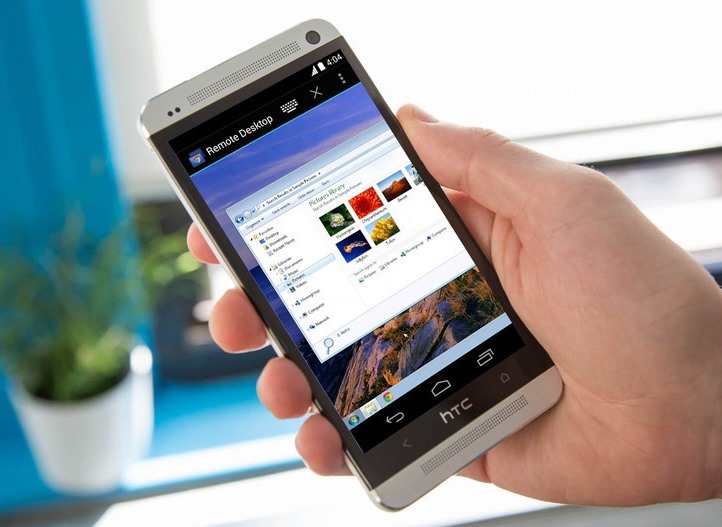
Method 2: Using Chrome Remote Desktop
Open a Chrome browser on your computer. In case you don’t have it, you can visit google.com/chrome to download it.
Login to your google account. If you don’t have one, then create a new account since you will need it.
On the chrome browser, open the web store and search for Chrome Remote Desktop. Click on “Add to Chrome” button and then in the window that opens, click on “Add App”.
Open Chrome Remote Desktop by clicking the green “Launch App” button near the upper right of your screen. Click the “Authorize” button at the lower part of the next pop-up window, and then click “Allow”. Click the “Get Started” button under the My Computers heading, and then click the “Enable Remote Connections” button. Create a PIN of 6 digits or more. This is to log into your remote computer. Click “Yes” on the popup window that asks if you want to allow this program to make changes to your computer. Click “OK” to finish.
Download Chrome Remote Desktop app on your iPhone.
You can now start controlling your computer using your iPhone.
- Open the Chrome Remote Desktop app on your iPhone, and log into your Google account. Select the computer you want to control, enter its PIN and click “connect”.
- You are about to control your computer with your phone’s touch commands.
- Click the keyboard icon at the bottom right of your screen to access zoom, settings, and a virtual keyboard.
- Access files, programs, and operate your computer with touch commands as if you were sitting in front of it.
- To close the connection, click the X icon on the lower left.
[adinserter block=”7″]
As a technology lover you may like our daily important technology news series. It’s a playlist and you can retrieve the total day-wise videos. Please consider subscribing our YouTube channel:
Author: Technology and Beyond

