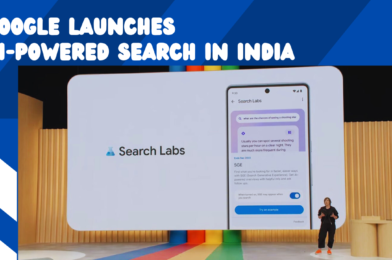
Google Launches AI-Powered Search in India

Google Launches AI-Powered Search in India
Google has launched its AI-powered Search in India, making it easier for users to find information and get answers to their questions. The new search experience, called Search Generative Experience (SGE), uses generative AI to provide more comprehensive and informative results.

SGE can answer your questions in a natural language format, providing summaries of factual topics, lists of relevant information, and even images and videos. It can also help you explore a topic in more depth by providing pointers to related content.

To use SGE, simply visit Google.com and enable the feature in Search Labs. You can do this by clicking on the gear icon in the top right corner of the search results page and selecting Search Labs. Then, scroll down to the Generative AI in Search section and toggle the switch to On.

Once SGE is enabled, you can start asking your questions in a natural language format. For example, you could ask “What is the capital of India?” or “How do I make a cake?” SGE will then provide you with a comprehensive answer, including a summary of the topic, relevant information, and even images and videos.

SGE is currently available in English and Hindi. It is still under development, but Google plans to add more languages in the future.

Here are some tips for using SGE:

  • Be as specific as possible when asking your questions.
  • Use keywords that are relevant to the topic you are interested in.
  • Avoid using slang or informal language.
  • If you are not sure how to phrase your question, try using the Search bar to get suggestions.

SGE is a powerful new tool that can help you find information and get answers to your questions more easily. With its ability to understand natural language and provide comprehensive and informative results, SGE is a valuable resource for anyone who uses Google Search.

How to enable SGE in Google Search

1.Open Google.com in your web browser.
2.Click on the gear icon in the top right corner of the search results page.
3.Select Search Labs.
4.Scroll down to the Generative AI in Search section and toggle the switch to On.
Once SGE is enabled, you can start asking your questions in a natural language format.

Tagged : / / /

Google Flights Introduces New Feature to Help Users Book Cheaper Flights

Google Flights Introduces New Feature to Help Users Book Cheaper Flights
Google Flights, a popular flight search engine, has announced a new feature that aims to help users book cheaper flights. The new feature, called “Insights,” uses historical data to show users when prices for flights to their desired destinations are typically lowest.

To use Insights, users simply enter their travel dates and destinations into the Google Flights search bar. The Insights feature will then display a graph showing the average price of flights to that destination over the past year. Users can also see the cheapest days to fly and the cheapest times of day to book flights.

In addition to Insights, Google Flights also offers a number of other features to help users find the best deals on flights. These features include:

  • Price Alerts: Users can set up price alerts to be notified when the price of a flight they are interested in drops.
  • Price Graphs: Users can view price graphs for specific flights to see how prices have fluctuated over time.
  • Multi-City Search: Users can search for flights to multiple destinations at once.
    Cancellation Policies: Users can view the cancellation policies for specific flights before booking.
  • Google Flights is a great resource for finding cheap flights. The new Insights feature is a valuable addition that can help users save money on their next trip.

Here are some additional tips for booking cheaper flights:

  • Be flexible with your travel dates. Flying on weekdays or during off-peak hours can often save you money.
  • Consider flying into smaller airports. Smaller airports often have lower landing fees, which can translate into lower ticket prices.
  • Book your flight in advance. Airlines often offer discounts for booking flights in advance.
  • Use a travel rewards card. Travel rewards cards can give you points or miles that you can redeem for free flights or other travel expenses.
    By following these tips, you can save money on your next flight.
Tagged : / / / / / /

Google to Make eSIM Transfers Easier with QR Code Feature

Google to Make eSIM Transfers Easier with QR Code Feature
eSIMs, or embedded SIMs, are a newer type of SIM card that are built into the device instead of being a physical card that you can remove. eSIMs offer a number of advantages over traditional SIM cards, including the ability to switch carriers more easily and the ability to use multiple eSIMs on the same device.

Currently, transferring an eSIM from one device to another can be a bit of a hassle. In most cases, you need to contact your carrier and request a new eSIM activation code. This can be a time-consuming process, especially if you are switching carriers.

Google is working on a new feature that will make it easier to transfer eSIMs between devices. The feature will use QR codes to transfer the eSIM data from one device to another. To use the feature, you will simply scan the QR code on the old device with the new device. The new device will then automatically download and install the eSIM.

Google has not yet announced a release date for the eSIM transfer feature. However, it is expected to be released in the coming months.

The eSIM transfer feature is a welcome addition to Android. It will make it much easier for users to switch carriers and devices without having to worry about transferring their eSIM data. The QR code-based transfer process is also very convenient and easy to use.

In addition to making eSIM transfers easier, the new feature could also help to promote the adoption of eSIMs. ESIMs are still not as widely adopted as traditional SIM cards, but the convenience of the new transfer feature could make them more appealing to users.

Overall, Google’s new eSIM transfer feature is a positive development for Android users. It will make it easier to switch carriers and devices, and it could help to promote the adoption of eSIMs.

Here are some of the benefits of using Google’s new eSIM transfer feature:

  • It is easy to use. Simply scan the QR code on the old device with the new device and the eSIM will be transferred automatically.
  • It is convenient. You do not need to contact your carrier or go through a lengthy activation process.
  • It is fast. The transfer process takes just a few seconds.
  • It is secure. The transfer is done over a secure connection.
    If you are an Android user, you can expect to see the eSIM transfer feature in a future update to your device. In the meantime, you can learn more about eSIMs and how to use them on Google’s website.
Tagged : / /

Google Adds AI-Powered Grammar Checker Feature: Learn How to Activate It

Google Adds AI-Powered Grammar Checker Feature: Learn How to Activate It
Google has added a new AI-powered grammar checker feature to its search engine. This tool can help you identify and correct grammar errors in your writing, making it more polished and professional.

To activate the grammar checker, simply type your text into the search bar and add the phrase “grammar check” or “check grammar” to the end. For example, if you want to check the grammar of the sentence “I went to the store to buy some milk,” you would type “I went to the store to buy some milk grammar check” into the search bar.

Google will then analyze your text and highlight any grammar errors it finds. It will also suggest corrections for these errors. For example, if Google finds that you have used the wrong verb tense, it will suggest a correction.

You can then accept or reject Google’s suggestions. If you accept a suggestion, Google will rewrite your text to correct the error. If you reject a suggestion, Google will leave your text unchanged.

The grammar checker is still under development, so it may not catch all grammar errors. However, it is a valuable tool for anyone who wants to improve their writing skills.

Here are some tips for using Google’s AI-powered grammar checker:

  • Be specific about what you want to check. If you just type “grammar check” into the search bar, Google will check your entire text for errors. However, if you specify the type of error you want to check, such as “subject-verb agreement” or “punctuation,” Google will focus on that type of error.
  • Use the grammar checker as a learning tool. If Google suggests a correction that you don’t understand, take a moment to learn why the correction is necessary. This will help you improve your grammar skills over time.
  • Don’t rely on the grammar checker too much. The grammar checker is a helpful tool, but it’s not perfect. It’s important to proofread your text carefully before you submit it, even if the grammar checker hasn’t found any errors.

How to activate the grammar checker on your mobile device?

Open the Google app on your mobile device.
Tap the search bar.
Type your text into the search bar and add the phrase “grammar check” or “check grammar” to the end.
Tap the search button.
Google will analyze your text and highlight any grammar errors it finds.
You can then accept or reject Google’s suggestions.

The grammar checker is a powerful tool that can help you improve your writing skills. It’s easy to use and it’s free to use. So why not give it a try?

Tagged : / / /
Verified by ExactMetrics