The physics behind much hyped Hyperloop: Exclusively for you!

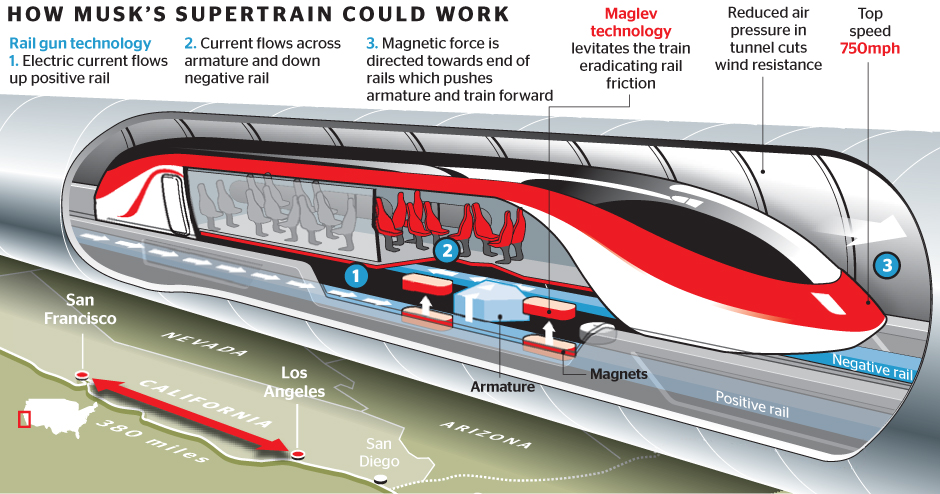
There has been a lot of talk about the Hyperloop concept and the amazing transportation system it promises to bring into human lives. This is a high-speed train that would make the trip from San Francisco and Los Angeles in just 30 minutes. The propulsion system was tested a few days ago by the Hyperloop One Company, in the desert outside Las Vegas.
Basic CMYK

In this same project, another startup called Hyperloop Transportation Technologies also announced that it had licensed a promising technology called Inductrack from Lawrence Livermore National Laboratory for its own Hyperloop design. If you haven’t yet got a chance to understand the Hyperloop transportation system and the physics behind it, then go through this article and then the video accompanying it. You will surely understand a lot.

It was in 2012, that Elon Musk had made an announcement about a new theoretical transportation method which presented the idea of a capsule that will propelled through a tube at over seven hundred miles an hour. He gathered some great minds from SpaceX and Tesla to create a prototype. Known as Hyperloop, the technology consists of a low pressure tube with capsules that transport at both high and low speeds. This system will run between San Francisco and Los Angeles and complete the journey in 30 minutes. There are certain physics concepts that it uses.

Friction and Hyperloop: Everything has friction, for example a brick lying on the floor has static friction which is the type of friction that keeps it in place, once the brick starts moving it encounters sliding friction. If something is rolling then it has rolling friction which is similar to a car wheel or any wheel in general when something is making constant contact at a particular point with a very small amount of friction. The fluid friction is when anything is moving and in counter resistance with the air for example airplanes or anything that has to move through air at a speed.

[adinserter block=”7″]

Next Page For More

Tagged : /

What should you do to restore a damaged PC due to power outage or surge?

These days, electronic devices and PCs are lifelines for us and we are completely dependent on those. But, because these devices are completely dependent on electricity, there is always a risk of damage due to power fluctuation or surge. There is always a possibility of power failure or surge due to storms, hurricanes, heavy rains, snow etc., which can damage your PCs and electronic devices.

battery

Subsequent to the electrical surge, your PC may reach a state where it won’t start at all, if the inner mechanism gets damaged. You should be aware of the precautions, which need to be taken so that your PC doesn’t get damaged due to power surge. Below are the measures which you must take to prevent damage in the first place itself:

  • Unplug your PC, in case of power outage.
  • Keep one light plugged in. This will let you know when electricity is back.
  • Have a backup of all the important files on an external USB drive. This will help you to retrieve the files, in case of data loss.
  • Install a barrier like surge protector, which shall protect your PC by nullifying the sudden power surge.
  • Having a UPS installed will give you enough time to complete your routine of shutting down your PC.

Follow the ways given below, to restore a damaged PC affected by power outage or surge.

There can be two possibilities because of which your PC will fail to start. The first possibility is damage to your power supply and second possibility is the damage to the device. You can replace the damage made to the power supply on your own, but, you need an expert in case the device is damaged itself. The following will help you to take some actions related to device damage.

Problem with the motherboard can lead to irregular working of your PC. You can correct this by:

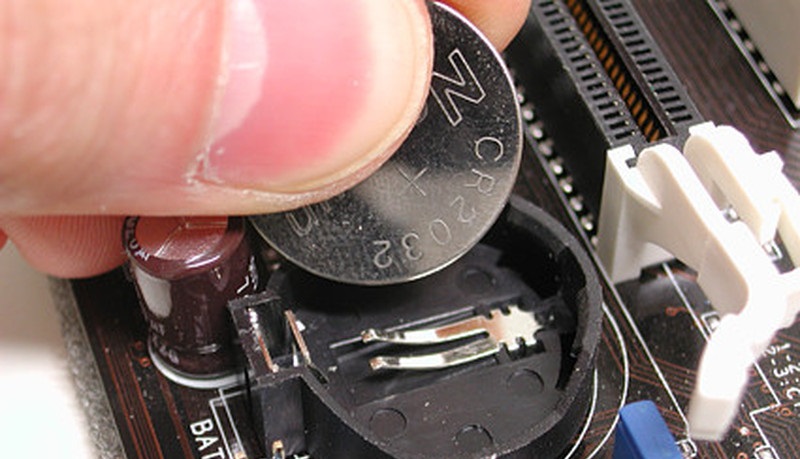
  • Removing the small battery from the motherboard, and restart the PC, inserting the battery again after 5 min.
  • Buy an identical motherboard.
  • Buy a new motherboard.

If your PC is working irregularly, then it can be a mainly the problem of the motherboard. There is small chance that the CMOS information is scrambled. To correct this, you can remove the small battery on motherboard. Insert it after five minutes and restart your PC.

[adinserter block=”7″]

As a technology lover you may like our daily important technology news series. It’s a playlist and you can retrieve the total day-wise videos. Please consider subscribing our YouTube channel:

Author: Technology and Beyond

Tagged : /

Nokia set to make a comeback! This time with Android!

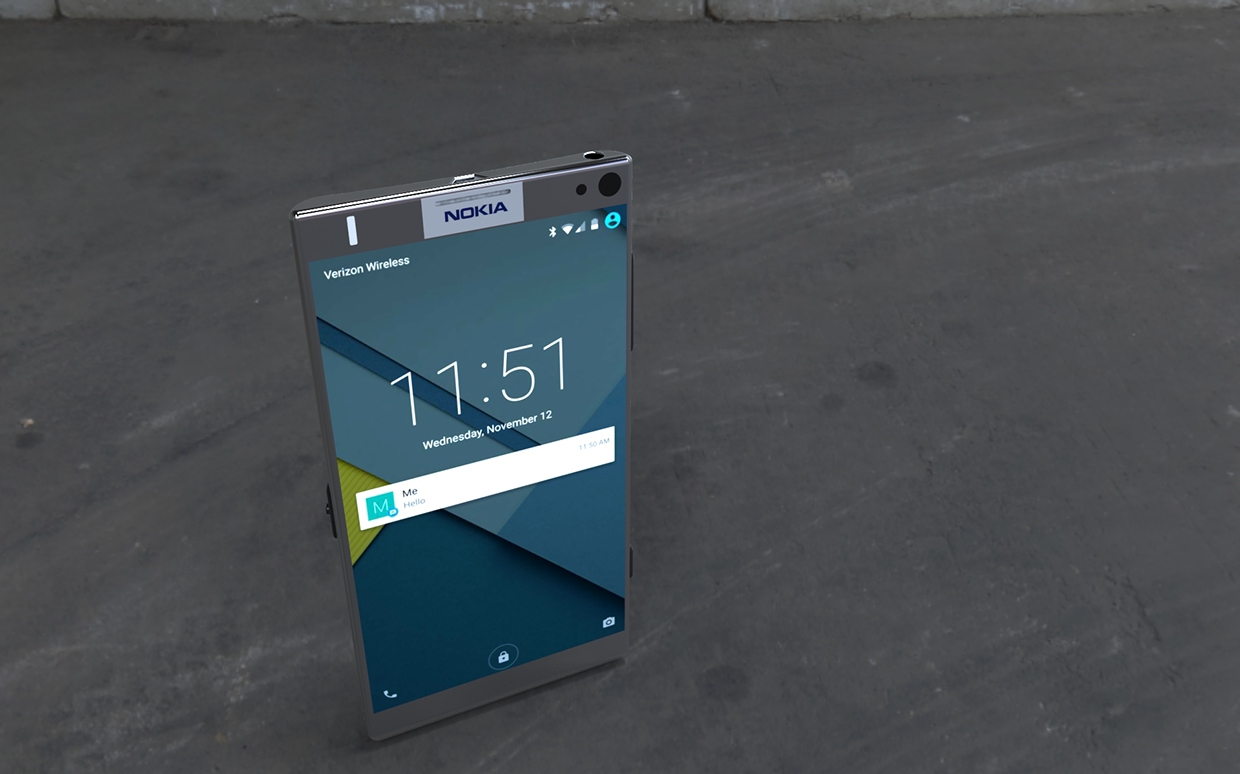
When was the last time when any of you used a Nokia handset? Ummm…. We know it’s been quite some time! But for those of you who have been thinking about where is ‘Nokia’… we have good news. According to recent reports, Nokia is returning to the smartphone market. Microsoft recently announced it’s offloading of Nokia’s old feature phone business to a Foxconn subsidiary and a Finnish company called HMD Global Oy.

nokia-2

It has been revealed by Nokia that HMD is also acquiring the rights to use the Nokia name on smartphones and tablets for the next ten years. This means, the day is not far when we will see Nokia branded smartphones and tablets run on Adnroid.

According to statement from HMD, it plans to invest $500 million over the next three years to develop and promote products. The money will supposedly come from investors and from profits from the newly-acquired feature phone business. Though it has been made clear that Nokia’s involvement in the new devices will be very limited, it will be a part of HMD’s board and will set mandatory brand requirements and performance related provisions.

Nokia is doing this to ensure that quality handsets are released because it is the goodwill of Nokia that will be at stake if the devices are inferior. FIH Mobile, the Foxconn subsidiary will be the manufacturer of the new HMD smartphones and tablets. The agreement includes HMD’s access to Nokia’s vast arsenal of mobile patents. As to when will we get to see the Nokia handsets and tablets and with what version of Android, that is still under wraps.

As a technology lover you may like our daily important technology news series. It’s a playlist and you can retrieve the total day-wise videos. Please consider subscribing our YouTube channel:

Author: Technology Vista

Tagged : /

Do you not switch off your computers/ devices routinely? See why and how it is harmful!!

If you are not switching off the electric items when you are not using them, you are actually wasting electricity and electricity costs money.  Move over, you are damaging the planet, you depend on, by burning the carbon to generate electricity.

According to computer technicians, PCs/desktops are meant to stay on for long period of time but you should set your PC to go into sleep mode after a specified period of non-usage. But, in case of laptops, you need to turn it off, if it is not properly set up to permit cooling at the Base of unit. Otherwise, this may damage your device due to overheating and burnout of the processor.  To save the energy and to prolong the life of your laptop/PC, you need to keep the air vents clean. Also, most probably, you will suffer the problem of disconnect, if you will leave your modem or router on for long time.

Here is the list of problems you will suffer, if you are not turning off your electronic items for a long time:

Overheating

In the system like pc and laptop, overheating occurs due to their excessive use. It may, eventually, destroy the hard drive and you may lose your important data. Motherboard may also get burnt in this process. Therefore, in order to prevent it from overheating, turn off your pc/laptops and make sure, proper air should enter in your pc for cooling purpose.

Wi-Fi or internet network problem

In case, there is some problem associated with your Wi-Fi and internet connection, there is a chance that it is related to the software of your modem or router. In order to solve this problem, restart the router by unplugging it from the power socket and then plug it back. This, power cycling, enables the devices to boot afresh and acquire a new snapshot of the network. This is especially required when there is some change in the network in terms of hardware, software or configurations.

That’s why it is important to turn off your pc, laptop, router, modem and other electronic equipment as and when possible.

Here are the reasons to keep your pc/laptop on and off:

Reason to keep it on 

  • When you are using your computer as a server.
  • When you are allowing activities like background updates, virus scan to occur while you are away.

Reasons to keep it off:

  • To save electricity.
  • To increase the performance of the electronic items.
  • To slow down natural degradation process

[adinserter block=”7″]

As a technology lover you may like our daily important technology news series. It’s a playlist and you can retrieve the total day-wise videos. Please consider subscribing our YouTube channel:

Author: Technology and Beyond


Tagged : /

Google Gave Us a Million Reasons to Buy Chromebook!

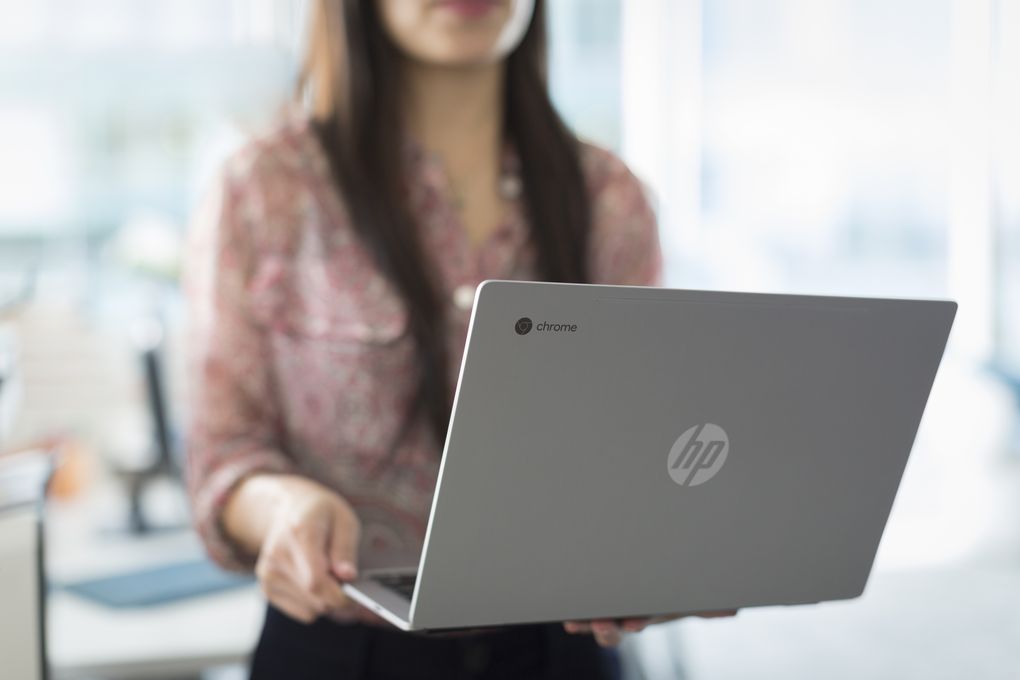
First spotted by 9to5Google, and now confirmed by Google itself, that Chrome OS will open up to Android app developers this June. Android would be pulling the Google Play Store, along with its one million apps, into Chrome OS. And Google hopes that within a couple months, apps will move to a stable beta release and finally work on Chromebooks this fall.

new-chromebook-pixel-2267.0

Sundar Pichai talked about bringing Android to Chrome OS all the way back at Google I/O 2014. That promise resulted in a limited project, called App Runtime for Chrome and brought a dozen or so apps like Duolingo, Evernote, and Vine to Chrome OS. Now, you’re getting all of them-that is if developers build the apps for the platform.

We can expect that the Android Apps can be shown in 3 different window sizes to allow the best experience. Users can multi-task with multiple Android apps in moveable windows along with a full desktop browser, all within the familiar Chrome OS interface.

As explained by the Android developers, the keyboard, mouse, and touch input will seamlessly work together, and the users will get Android notifications on their Chromebooks. Android apps benefit from the Wifi or Bluetooth connectivity setup by the user or the administrator.

File sharing is seamless between Chrome and Android apps through the Files app. The performance of demanding apps such as games or design apps is excellent.

Chromebooks have been cheap and convenient, but lacked the App Store to make it a true laptop competitor. But now, it has that too. Some apps won’t be tethered to an internet connection like normal Chrome apps, making Chromebooks an online and offline machine. Of course, some apps that require smartphone-specific hardware, like GPS, might not work on a Chromebook at all.

These apps still need some time to be developed and fully compatible. The new feature will first appear on the Asus Chromebook Flip, Pixel 2 (2015), and Acer Chromebook R11 in June.

[adinserter block=”7″]
As a technology lover you may like our daily important technology news series. It’s a playlist and you can retrieve the total day-wise videos. Please consider subscribing our YouTube channel:

Author: Technology and Beyond

Tagged : /

Any idea if trees sleep at night? Here is what scientists say!

New research measured the changes in behavior pattern of plants and concluded, that plants sleep at night after a long day in the sun, hence, do not pluck flowers at night. Plants, like any other living organisms, adapt behavior according to the rhythm of day and night. Flowers open in the morning, while some trees leaves close during the night.

1095060541-Scientists-Have-Found-Trees-Sleep-At-Night-Too

A team of researchers from Austria, Hungary and Finland measured the movement of trees using laser and scanners. According to them, “ results show that the whole tree droops during night, which can be seen as position change in leaves and branches,” said Eetu Puttonen from Finnish Geospatial Research Institute.

“The changes are not too large, only up to 10 cm for trees with a height of about 5 metres, but they were systematic and well within the accuracy of our instruments,” Puttonen said.

The experiment was done twice, first in Finland and second in Austria, to rule out effects of location and weather. The tests were carried out close to solar equinox, with no winds or condensation, under calm conditions.

It was observed that the leaves and branches dropped gradually, and in the morning, the tress turned to their original position within a few hours.

The reason of this is still not clear. The researchers noted that laser scanners use infrared light that is reflected by the leaves. With this scanning technique, a full-sized tree can be automatically mapped within minutes with sub-centimeter resolution.

“We believe that laser scanning point clouds will allow us to develop a deeper understanding of plant sleep patterns and to extend our measurement scope from individual plants to larger areas, like orchards or forest plots,” Norbert Pfeifer from Vienna University of Technology in Austria said.

width="560" height="314" allowfullscreen="allowfullscreen">

[adinserter block=”7″]

As a technology lover you may like our daily important technology news series. It’s a playlist and you can retrieve the total day-wise videos. Please consider subscribing our YouTube channel:

Author: Technology and Beyond

Tagged : /

Know what your cat is trying to say! This smart collar translates cat meows into human speech!

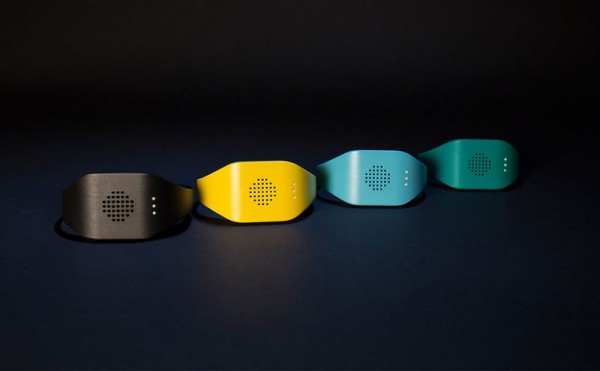
Good news for people who love cats! You now have an opportunity to understand what your cat is saying. Thanks to the invention of smart collar. This can interpret feline meows and translate it to human speech. Named as ‘Catterbox’, it has a digital sensor, which detects meows and then, with the help of a special program, it decrypts the meaning behind it.

catterbox-cat-collar2-600x371This is developed by an ad agency, adam&eveDDB, located at London. They developed it for Temptation Cat Treats. The invention comes with a dictionary of cat meows, purrs and several other sounds, so that the interpretation is accurate.

“We’re fascinated by cats, so we set out on a mission to get to know them better,” said Pete Simmons, global brand director of Temptations.

The world’s first talking cat collar, is designed to help people understand the meaning of meows.

“Cats are often perceived as quite hard to get to know, independent pets, so we set up The Temptations Lab to find innovative ways to inject even more fun into a cat and owner’s relationship,” said Richard Brim, executive creative director of adam&eveDDB.

Owners can communicate with their cats and expect a meaningful response by using the collar. The responses are delivered in British accent. The voice can be selected by the people through on app on the smartphone that is paired with the collar.

There a few sample responses on the company’s YouTube channel, which are quite hilarious and not very convincing.

width="560" height="314" allowfullscreen="allowfullscreen">

[adinserter block=”7″]
As a technology lover you may like our daily important technology news series. It’s a playlist and you can retrieve the total day-wise videos. Please consider subscribing our YouTube channel:

Author: Technology and Beyond

Tagged : /

Should you safely eject or simply pull out USB drives?

Most of us just pull a flash drive out, instead of safely removing it. Operating Systems treat the disks as objects, which can be trusted to not change the state suddenly.

6984516173_1fe5df5693_k_web_1024

The OS expects the files to remain accessible, while reading or writing, and, not suddenly disappear in the middle of the process.

There are two answers to whether you should eject a flash drive or not.

A short answer to this is yes one should always eject a drive before removing it. Mac and Linux will provide you a way to eject a drive always, but sometimes windows do not have an eject option for selected drives. On Windows select the “Safely remove hardware” option from the system tray and select the drive you want to remove.

A long answer to this is, that in windows, one can remove a flash drive without ejecting sometimes.

Here is a bit more of information on how computers actually deal with USB drives.

Why computers want you to eject drives?

Removing out a drive, while it is being written can corrupt the data. However, even though the drive isn’t actively being written to, it can still corrupt the data. Most of the OS uses write coaching to get better performance out of your computer.

While you write a file to another drive, for example, a flash drive, the OS waits to actually perform that action, till it has a number of requests to complete. It then completes all of them together. Clicking on eject button, tells your OS to flush the cache, which means it makes sure that all pending actions have been performed. You can safely unplug the drive now without any data corruption.

[adinserter block=”7″]
Next Page For More

Tagged : /

Exclusively for you: THIS is how to use the headphone as iPhone Camera Remote

Most of the time, the iPhone’s camera app shutter button is inconvenient for clicking pictures, especially, if you are operating it with one hand. As an alternative, you can always use the volume button of the phone to click pictures.

iphone-headphones-as-camera-shutter-remote

But, there is yet another way to click a picture, which most of the users are not aware of.

This trick has been around for years, yet you might have not tried it. The two volume buttons on your iPhone headphones can act as shutter button to click pictures.

You can click pictures with one hand and keep the phone upward with the other. This works for videos as well. You can use the headphones as a wired remote.

It might save you from the hassles of juggling with your phone in awkward situations.

[adinserter block=”7″]

As a technology lover you may like our daily important technology news series. It’s a playlist and you can retrieve the total day-wise videos. Please consider subscribing our YouTube channel:

Author: Technology and Beyond

Tagged : /

We don’t need weaponized robots and 1,000 most reputed AI scientists are opposing them too!

There has always been a lobby of scientists who love making robots more advanced than their predecessors and there has always been a lobby of scientists who believe that by making advanced robots we are actually pushing the humanity to certain doom. One such reputed scientist is Stephen Hawking. He is one of the most reputed Artificial Intelligence experts in the world.

ap071008015852-ef1d03c82cfbd9953fd5edf1a9b26bd0fc9d00a9-s900-c85

He has always been the one to raise his voice against AI taking over humanity someday or if not taking over than doing irreparable harm to it.

In a recent development, Stephen Hawking along with Tesla’s Elon Musk, Apple co-founder Steve Woznik, Google Executive Demis Hassabis and other AI experts (the number was nearly 1000) signed an open letter warning the world about the dangers of weaponized robots and military artificial intelligence arms race currently happening between the world’s strong military powers.

The problem at present may not sound as serious to the people at large because most of them either do not understand the repercussions of it or aren’t bothered to raise their voice against it.

It is s fact that the current military technology available to the world’s governments has already become a danger looming large in coming future and this danger affects everyone living on the planet and the planet itself. On top of it, artificial intelligence is making the global arms race even filthier, dirtier and dangerous for humanity.

[adinserter block=”7″]
Next Page For More

Tagged : /

While Virtual Reality is coming in a big way, check, if your PC is ready for it!

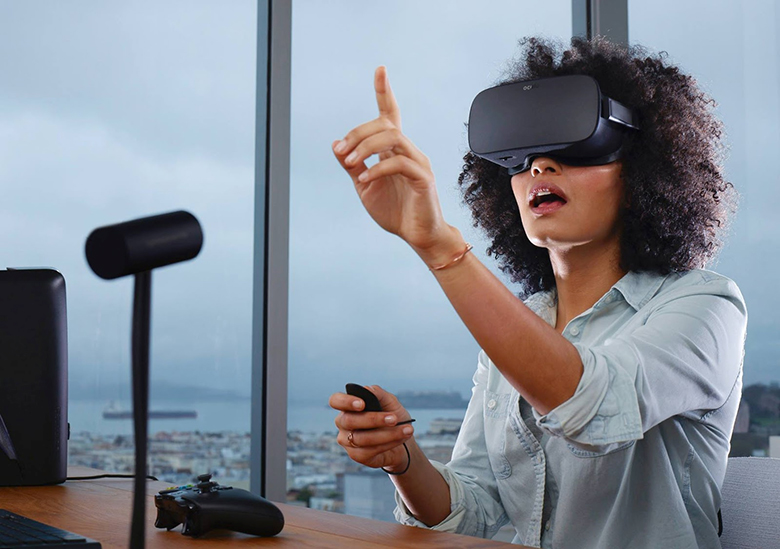
Virtual reality is coming faster than anyone thought. The time is not far when you will be able to enjoy games on computer and other programs in 3D with devices like HTC vive and Oculus Rift. Before that, you need to check, if your PC is virtual reality ready. Software released by Oculus VR makes it easy to check the compatibility of your PC with Virtual Reality.

rift

Oculus VR has also printed a list of hardware requirement for your PC, so that you can use the Oculus Rift and experience the Virtual Reality games. The Rift headset makes it possible for everyone to experience the Virtual Reality, but to experience that, you need to make sure that your computer system is up to the mark.

Here, are the instructions for checking the Virtual Reality compatibility of your computer:

  1. You have to visit the oculus order page to find the compatibility tool, as it does not have its own website or webpage.
  2. Download the ‘Exe’ file of ‘Rift Compatibility tool for windows’ from the Oculus website.
  3. Open the file. Once the download is complete.
  4. Click on ‘start’. A window opens, where you find the start button in a box.
  5. This program shall analyze your system. On completion of the execution of the program, you will get the result. It will prompt you, if your PC is ready for VR or not. In case, your PC is not compatible; you may then have to upgrade your external graphics card or the processor.

Here is list of the minimum hardware requirement for Oculus Rift compatibility: 

  1. A graphics card equivalent to AMD 290/ NVIDIA GTX 970 or greater than these.
  2. A processor equivalent to Intel i5 (4590) 4th generation or greater than that.
  3. Memory or Ram of 8GB or more
  4. Video output of HDMI 1.3 or more
  5. Operating system of Windows SP1 or latest
  6. At least two USB 3.0 ports

[adinserter block=”7″]

As a technology lover you may like our daily important technology news series. It’s a playlist and you can retrieve the total day-wise videos. Please consider subscribing our YouTube channel:

Author: Technology and Beyond

Tagged : /

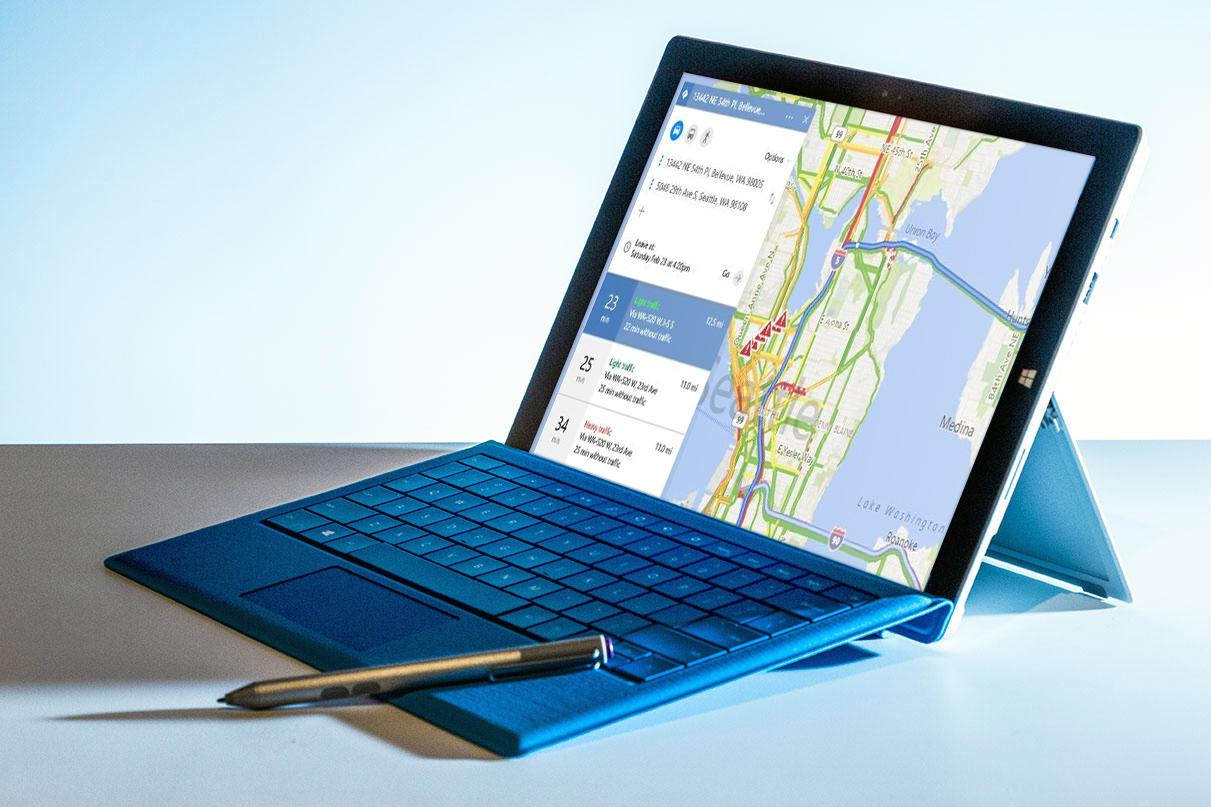
THIS is how to use offline Maps in Windows 10

We all rely on maps, so much, these days. It is very easy to find nearby locations and addresses with the help of maps. Windows 10’s user-friendly maps application has made it more convenient and easier for us to find locations with both speed and accuracy.

This app is a first party app by Microsoft. It worked in offline mode previously on window operating smart phones. Now Microsoft has taken it further by making it compatible with windows 10. This has resulted in the ultimate success of producing a universal map app for windows 10 compatible with PCs for every user.

Windows 10 offers user to download the maps as offline maps. With the help of offline maps one can navigate through even without having an access to Internet.

Follow the steps given below to download local maps in windows 10 for offline use:

  1. Select ‘Settings’ options from start menu.
  2. Click ‘System’ that is the very first option from the list.
  3. Select ‘offline maps’ and download it by selecting ‘download maps’ options.
  4. Select the area of that you need to browse, from different continents available. You can select multiple areas too. Make sure, you select small regions and download it, instead of selecting the entire range or continent as that may lead to heavy consumption and will hurt you, if you are on limited data scheme.
  5. Once you have selected the areas for which you want the map, click on the download option at the bottom of the screen to start the process.
  6. The downloading process may take a little time because of high incoming data. Be patient and wait for the download process to complete.
  7. You will be notified once the download it complete. You can now open the map applications after disabling your Internet.
  8. A list of the all places that you selected will be in front of you. Now you can easily make use of the maps to find places, directions, cities etc. that you were looking for.

You can now browse places, directions and different destinations in offline mode with the help of windows 10 maps application.

[adinserter block=”7″]

As a technology lover you may like our daily important technology news series. It’s a playlist and you can retrieve the total day-wise videos. Please consider subscribing our YouTube channel:

Author: Technology and Beyond

Tagged : /

Don’t get frustrated, you can speed up your Windows 10 machine like new with these simple tricks!

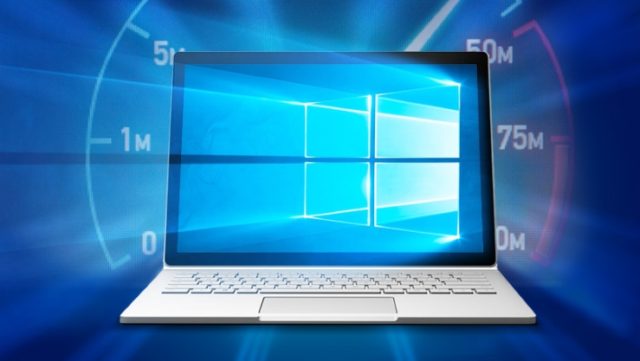
Are you facing speed and performance issues even after upgrading to windows 10? If your answer is yes, then you need to optimize your PC. Optimizing your PC means making some basic changes and modifications to make the best use of Windows 10. Little changes and modifications will increase the speed of starting and shutting down process.

Windows 10 provides a new interface and appearance making it interesting and adorable. Despite liking the Graphic User Interface and facilities, people in general, are often frustrated regarding the lack of speed.

More often than not, it has been observed that the problems related to lack of speed can be addressed simply by changing relevant settings in the concerned computer.   Follow the steps given below the speed up the basic functions of windows 10:

Get rid of unimportant an unnecessary auto-starters

0215-start-tab-100643301-orig

As soon as the booting process starts on switching on the PC, a lot of unwanted ground process becomes active within fraction of seconds. These unwanted processes slows down the booting process of windows 10 OS. Auto Starters are so big and memory hogging that they further reduce the speed and performance of OS even after the booting process is completed.

Right click on the task bar and select “Task manager option” to see and edit the list of start up processes. You can easily disable the programs that you do not want by simply right clicking on it and selecting the disable option.

Making a change in the power setting of the OS

3

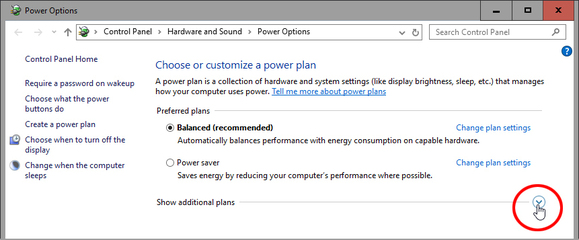
The default configurations of a laptop/ computer are made in a manner where the OS consume less power that results in slow processing of the OS. This happens as its performance functions are closed and disabled automatically because of its power saving mode. To enhance the processing, one needs to right click the start button and choose power options. Now on the control panel screen opened in front of you, select high performance from show additional plan option. This will definitely help the OS to work better and faster than before.

[adinserter block=”7″]

Next Page For More

Tagged : /

THIS cute little trick will convert your browser into a text editor!!

Notepad is an awesome software. But, often, we need to just jot down small one or two liners that we don’t intend to save. There is a simple way to do it in any browser while you are browsing various sites and doing some research.

All you need to do is type the following code into the browser’s URL bar:

Open chrome or Firefox browser

Type data:text/html, <html contenteditable> in the address bar. And hit return Key

You will see the cursor blinking on pressing the enter key.

This little trick uses the Data URI scheme and opens a simple HTML page with the element, “contenteditable.” After typing the content, if you decide to save it, just go ahead and press Ctrl+S and you will be able to save it as a HTML file. Otherwise also, it’s a cute way to brain dump your ideas which you need not necessarily save it!

You don’t have to remember this little line of code if you simply bookmark it for future access.

NOTE:

You can use this only as a text editor. You will get simple white canvas where you can type whatever you feel like. No formatting options or tools shall be available.

[adinserter block=”7″]

As a technology lover you may like our daily important technology news series. It’s a playlist and you can retrieve the total day-wise videos. Please consider subscribing our YouTube channel:


Author: Technology and Beyond

Tagged : /

Your Notepad can type automatically: Here is how to do ghost typing!

Everyone loves prank. Here we show an amazing notepad trick. This trick is known as Ghost Typing. Don’t get scared. Using this trick your notepad will type automatically.

Follow the steps given below:

Open Notepad.

Copy and paste the code given below in notepad.

Set wshshell = wscript.CreateObject(“WScript.Shell”) 
Wshshell.run “Notepad” 
wscript.sleep 400
wshshell.sendkeys “T”
wscript.sleep 100
wshshell.sendkeys “E”
wscript.sleep 120
wshshell.sendkeys “C”
wscript.sleep 200
wshshell.sendkeys “H”
wscript.sleep 100
wshshell.sendkeys “N”
wscript.sleep 140
wshshell.sendkeys “O”
wscript.sleep 100
wshshell.sendkeys “L”
wscript.sleep 50
wshshell.sendkeys “O”
wscript.sleep 120
wshshell.sendkeys “G”
wscript.sleep 170
wshshell.sendkeys “Y”
wscript.sleep 200
wshshell.sendkeys “ ”
wscript.sleep 100
wshshell.sendkeys “V”
wscript.sleep 50
wshshell.sendkeys “I”
wscript.sleep 120
wshshell.sendkeys “S”
wscript.sleep 160
wshshell.sendkeys “T”
wscript.sleep 200
wshshell.sendkeys “A”
wscript.sleep 100
wshshell.sendkeys “ / ”
wscript.sleep 100
wshshell.sendkeys “N”
wscript.sleep 100
wshshell.sendkeys “E”
wscript.sleep 100
wshshell.sendkeys “O”
wscript.sleep 100
wshshell.sendkeys “P”
wscript.sleep 100
wshshell.sendkeys “R”
wscript.sleep 100
wshshell.sendkeys “E”
wscript.sleep 100
wshshell.sendkeys “S”
wscript.sleep 100
wshshell.sendkeys “S”
wscript.sleep 100
wshshell.sendkeys “.”
wscript.sleep 100
wshshell.sendkeys “I”
wscript.sleep 100
wshshell.sendkeys “N”
wscript.sleep 100

Save the file as Technologvista.vbs
Note: While saving select Save as type  “All files”
Execute the saved File.

You will see “TECHNOLOGY VISTA/NEOPRESS.IN ” Typed Automatically.

If you liked this article, please share it with your friends and family. Also, let us know your personal experience regarding this in the comments below. 
[adinserter block=”7″]

As a technology lover you may like our daily important technology news series. It’s a playlist and you can retrieve the total day-wise videos. Please consider subscribing our YouTube channel:

Author: Technology and Beyond

Tagged : /
Verified by ExactMetrics