Don’t get frustrated, you can speed up your Windows 10 machine like new with these simple tricks!

Are you facing speed and performance issues even after upgrading to windows 10? If your answer is yes, then you need to optimize your PC. Optimizing your PC means making some basic changes and modifications to make the best use of Windows 10. Little changes and modifications will increase the speed of starting and shutting down process.

Windows 10 provides a new interface and appearance making it interesting and adorable. Despite liking the Graphic User Interface and facilities, people in general, are often frustrated regarding the lack of speed.

More often than not, it has been observed that the problems related to lack of speed can be addressed simply by changing relevant settings in the concerned computer.   Follow the steps given below the speed up the basic functions of windows 10:

Get rid of unimportant an unnecessary auto-starters

0215-start-tab-100643301-orig

As soon as the booting process starts on switching on the PC, a lot of unwanted ground process becomes active within fraction of seconds. These unwanted processes slows down the booting process of windows 10 OS. Auto Starters are so big and memory hogging that they further reduce the speed and performance of OS even after the booting process is completed.

Right click on the task bar and select “Task manager option” to see and edit the list of start up processes. You can easily disable the programs that you do not want by simply right clicking on it and selecting the disable option.

Making a change in the power setting of the OS
3

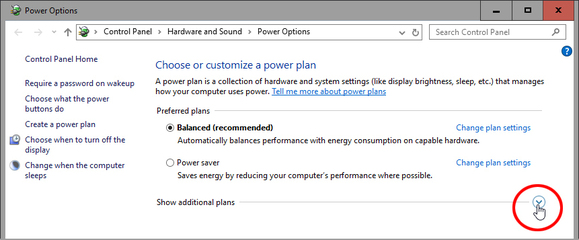
The default configurations of a laptop/ computer are made in a manner where the OS consume less power that results in slow processing of the OS. This happens as its performance functions are closed and disabled automatically because of its power saving mode. To enhance the processing, one needs to right click the start button and choose power options. Now on the control panel screen opened in front of you, select high performance from show additional plan option. This will definitely help the OS to work better and faster than before.

[adinserter block=”7″]

Next Page For More

Tagged : /

THIS cute little trick will convert your browser into a text editor!!

Notepad is an awesome software. But, often, we need to just jot down small one or two liners that we don’t intend to save. There is a simple way to do it in any browser while you are browsing various sites and doing some research.

All you need to do is type the following code into the browser’s URL bar:

Open chrome or Firefox browser

Type data:text/html, <html contenteditable> in the address bar. And hit return Key

You will see the cursor blinking on pressing the enter key.

This little trick uses the Data URI scheme and opens a simple HTML page with the element, “contenteditable.” After typing the content, if you decide to save it, just go ahead and press Ctrl+S and you will be able to save it as a HTML file. Otherwise also, it’s a cute way to brain dump your ideas which you need not necessarily save it!

You don’t have to remember this little line of code if you simply bookmark it for future access.

NOTE:

You can use this only as a text editor. You will get simple white canvas where you can type whatever you feel like. No formatting options or tools shall be available.

[adinserter block=”7″]

As a technology lover you may like our daily important technology news series. It’s a playlist and you can retrieve the total day-wise videos. Please consider subscribing our YouTube channel:


Author: Technology and Beyond

Tagged : /

Your Notepad can type automatically: Here is how to do ghost typing!

Everyone loves prank. Here we show an amazing notepad trick. This trick is known as Ghost Typing. Don’t get scared. Using this trick your notepad will type automatically.

Follow the steps given below:

Open Notepad.

Copy and paste the code given below in notepad.

Set wshshell = wscript.CreateObject(“WScript.Shell”) 
Wshshell.run “Notepad” 
wscript.sleep 400
wshshell.sendkeys “T”
wscript.sleep 100
wshshell.sendkeys “E”
wscript.sleep 120
wshshell.sendkeys “C”
wscript.sleep 200
wshshell.sendkeys “H”
wscript.sleep 100
wshshell.sendkeys “N”
wscript.sleep 140
wshshell.sendkeys “O”
wscript.sleep 100
wshshell.sendkeys “L”
wscript.sleep 50
wshshell.sendkeys “O”
wscript.sleep 120
wshshell.sendkeys “G”
wscript.sleep 170
wshshell.sendkeys “Y”
wscript.sleep 200
wshshell.sendkeys “ ”
wscript.sleep 100
wshshell.sendkeys “V”
wscript.sleep 50
wshshell.sendkeys “I”
wscript.sleep 120
wshshell.sendkeys “S”
wscript.sleep 160
wshshell.sendkeys “T”
wscript.sleep 200
wshshell.sendkeys “A”
wscript.sleep 100
wshshell.sendkeys “ / ”
wscript.sleep 100
wshshell.sendkeys “N”
wscript.sleep 100
wshshell.sendkeys “E”
wscript.sleep 100
wshshell.sendkeys “O”
wscript.sleep 100
wshshell.sendkeys “P”
wscript.sleep 100
wshshell.sendkeys “R”
wscript.sleep 100
wshshell.sendkeys “E”
wscript.sleep 100
wshshell.sendkeys “S”
wscript.sleep 100
wshshell.sendkeys “S”
wscript.sleep 100
wshshell.sendkeys “.”
wscript.sleep 100
wshshell.sendkeys “I”
wscript.sleep 100
wshshell.sendkeys “N”
wscript.sleep 100

Save the file as Technologvista.vbs
Note: While saving select Save as type  “All files”
Execute the saved File.

You will see “TECHNOLOGY VISTA/NEOPRESS.IN ” Typed Automatically.

If you liked this article, please share it with your friends and family. Also, let us know your personal experience regarding this in the comments below. 
[adinserter block=”7″]

As a technology lover you may like our daily important technology news series. It’s a playlist and you can retrieve the total day-wise videos. Please consider subscribing our YouTube channel:

Author: Technology and Beyond

Tagged : /
Verified by ExactMetrics